Site redirects to another site: cause and fix
The call usually sounds the same. A client, a friend, or someone who tried to open your page says the sentence you never wanted to hear: "I clicked your site and some betting site opened." You open your site right away to check, and everything looks perfectly normal. The homepage loads, the menu works, the contact form is where it should be. Nothing unusual.
In short: if others see a redirect and you do not, check like a stranger (incognito/another device), find where the code was injected, clean it, then request a Search Console review.
If someone told you that your site redirects them to someone else's pages and you cannot reproduce it, you are neither the first nor the last. This is one of the most common scenarios people contact us about, and it almost always causes the same confusion. In this article we explain why the redirect only affects some visitors, how to trigger it yourself so you can see it, where it physically hides in a WordPress install, and in what order to fix the problem.
Why the redirect does not happen when you open the site
This is the first thing to understand, because it explains almost everything else. When someone injects malicious redirect code, it is not in their interest for you to notice it. You are the owner. You will call someone, pay for a cleanup, and close the hole they came through. So the code is almost always written to work selectively.
The most common checks a malicious script runs before deciding whether to redirect you look like this.
Where the visitor came from
The script looks at how the visitor arrived on the page. If they typed the address directly into the browser, nothing happens. If they arrived by clicking a Google result, the redirect fires. The logic is simple: a visitor from search is a stranger who probably will not know whom to contact, while someone who types your address directly is often the owner or someone close to the site.
Which device they use
A large share of these infections targets mobile users only. The reason is practical. Mobile users notice fewer details, look at the address bar less often, and find it harder to take a screenshot and send it to someone. You almost certainly check your site from a computer, which is why you see nothing.

Whether the visitor is logged in
If you are logged into the WordPress admin, the browser carries a cookie that confirms it. Malicious code often checks that cookie first and, if it exists, does nothing. As an administrator you almost never browse the site logged out, so the redirect never shows up for you.
Whether the visitor has been there before
Some scripts redirect each visitor only once, then write a cookie so it does not happen again. The effect is that the person who reported the problem, when they try to demonstrate it, can no longer trigger it. That confuses both of you, and not rarely leads to the conclusion that the problem fixed itself. It did not. It only hid.
How to trigger the redirect yourself and see it with your own eyes
Before you touch any files, it is worth confirming the problem. Here is the sequence that works most often in practice.
First open an anonymous browser window. In Chrome that is Incognito, in Firefox Private Window. That clears both the login cookie and any cookies the script may have left earlier.
Then do not type the site address directly. Open Google, search for your site name or a phrase from it, and click the result. That way the browser sends the information that you came from search, which is the condition most of these scripts check.

If still nothing happens, repeat the same steps on your phone, again in an anonymous window and again through search. This step very often shows what the computer does not.
If that does not help either, ask someone who has never visited your site to try the same. Their browser has no history related to you and is closest to the state of an ordinary, random visitor.
If in one of these attempts you see the redirect, take a screenshot or record a short video. That proof helps later both during cleanup and when talking to your host.
Where the malicious code usually hides
Once you have confirmed that the site redirects, the next question is where to look. A few places repeat from case to case.
JavaScript injected into the theme
The most common case. Code is added to a file that loads on every page, usually header.php, footer.php, or the main JavaScript file of the active theme. It rarely looks like readable code. More often it is one long, unintelligible string of letters and numbers that only decodes at execution time. If you open such a file and see a line that stretches across the entire screen without a single recognizable word, that is almost certainly it.

Rules in the .htaccess file
On Apache servers, the .htaccess file in the site root can redirect traffic before WordPress even starts. Attackers like this spot because rules are often added at the very end of the file, after many blank lines, so someone who skims the file easily misses them. Also note that .htaccess starts with a dot, which means many file managers hide it until you enable showing hidden files.
Records in the database
This is the place most people overlook, because it is not in any file. Code can be written into the wp_options table, in fields WordPress loads on every request. It can also sit in page content, theme settings, or meta fields used by page builders like Elementor. If you clean only files and never look at the database, the redirect comes back as soon as the page loads again.
A planted plugin or mu-plugin
There is a folder wp-content/mu-plugins that WordPress loads automatically, before all other plugins, and whose contents do not show in the standard plugins list the same way. Many site owners do not even know that folder exists. That is why it is a favorite place for code that needs to run unnoticed.
A change at the DNS or domain level
This is the rarest case, but worth mentioning because it is also the most serious. If someone gained access to your account at the domain registrar, the redirect can happen before the request ever reaches your server. In that case cleaning the site changes nothing, because the site itself was never touched. If you have checked everything else and find nothing, check where your domain actually points.
How the malicious code got there in the first place
The question of why a site redirects is more important than it seems. If you remove the code but do not close the entry point, the same problem comes back, often within a week or two.
Most attacks on WordPress sites are not targeted. Automated scripts crawl the internet looking for sites with known weaknesses. When they find one, they exploit it and move on. The entry point is almost always one of the following.
- An outdated plugin with a published vulnerability. This is by far the most common case. When a vulnerability is disclosed publicly, attackers start using it within days, while many sites stay unpatched for months.
- A theme downloaded from an unofficial source. Pirated versions of premium themes often come with code someone deliberately inserted before sharing them for free.
- A weak or reused admin password. Brute-force attacks on the login page still succeed far more often than they should.
- Compromised hosting or FTP access, most often through a password that leaked on another service.
- Another site on the same hosting account. If you keep several sites on one package, infection from one often spreads to the others.
That is why it often happens that a site redirects only weeks after the first intrusion, when the owner no longer connects cause and effect.

A sequence that makes sense when you fix the problem
The natural reaction is to start deleting everything that looks suspicious. That almost always makes things worse, because you lose the trail of how the problem arrived, and sometimes part of a working site. Better to go like this.
First make a copy
Before any change, make a full copy of the files and the database. Even if the site is infected. That copy is your only protection if something goes wrong during cleanup, and the only data source if you later need to reconstruct what happened.

Then determine the scope
Check how much is actually affected. Does the site redirect only from the homepage, or from every page. Does it happen to all visitors or only some. Is another site on the same account hit as well. That picture tells you whether you are looking for one injected line of code or something that went deeper.
Then remove the code and close the entry
Removing the malicious code and closing the hole it came through go together, in the same move. If you do only the first, you bought yourself a few days. Closing the entry means updating everything that is outdated, removing plugins and themes you do not use, and changing every password that may have been compromised.
Finally check what was left behind
Attackers as a rule leave a backup access path. That can be an extra admin account with an innocent name, a file in the wp-content/uploads folder that has no business being there, or a scheduled task that reinstalls the code a few days later. If you do not check for that, the site redirects again and you have no explanation why.
Five mistakes most often made in panic
When someone reports that your site redirects and opens someone else's page, the first reaction is rarely the best. Here is what most often makes things worse in practice.
Deleting everything that looks suspicious
If you delete files before you have seen what is in them, you lose the only trail that tells you how the attacker got in. Without that you fix the symptom and wait for it to repeat. Always look first, then remove.
Reinstalling WordPress over the existing install
It sounds logical, but in most cases it fixes nothing. A reinstall replaces core files, while malicious code almost always sits in the theme, plugins, uploads folder, or database. Those are exactly the places a reinstall does not touch.
Restoring the site from an old backup without checking
This can help, but only if you know when the infection started. If you restore a copy from a week ago and the code was injected a month ago, you restored an infected site and also lost all content from the meantime. Establish a timeline before restoring a backup, not the other way around.
Installing five security plugins at once
More plugins doing the same job does not mean more protection. It means a slower site, possible conflicts, and five places where you have to track settings. Besides, no security plugin installed after a breach will remove code that is already there.
Waiting for the problem to go away on its own
It does not. Every day while the site redirects means more visitors who left with a bad impression, a higher chance Google notices and flags the site, and more time for the attacker to plant additional backup entries.
What to do with a Google warning if one appeared
If the problem where your site redirects lasted long enough, there is a chance Google noticed and flagged your site in search results. It is important to know that this warning does not remove itself after cleanup.
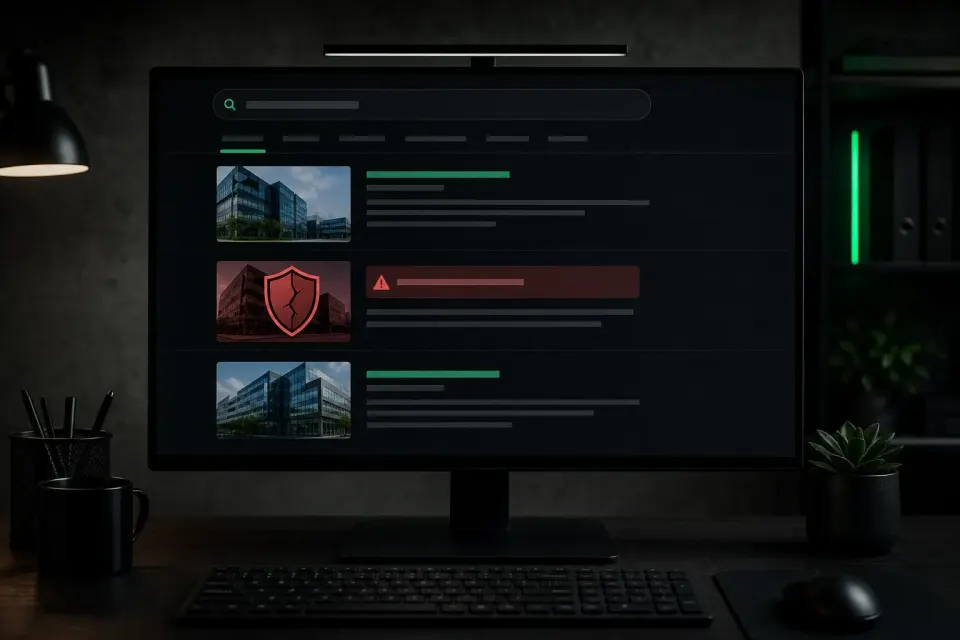
The process is to clean the site thoroughly first, then check in Google Search Console exactly which problem category was reported, then submit a request for review. Google then rescans the site, this time more carefully. If it still finds remnants of the problem, the request is rejected and the whole process starts over, so it pays to be thorough before submitting rather than fast.
How to prevent it from coming back
Once you have had a case where a site redirects, statistically it is more likely to be attacked again. Partly because it is already on lists used by automated scripts, partly because the original cause often remains unresolved.
Three things make the biggest difference, and none of them is complicated.
Regular updates of core, theme, and all plugins close most entry points before someone can use them. Most attacks target vulnerabilities that were patched long ago, only on sites where nobody applied the patch.
Strong, unique passwords for all admin accounts, with two-factor login where possible, remove the second most common entry.
Regular automatic monitoring catches changes nobody made on purpose. This matters precisely because of everything described above: if malicious code tries to stay invisible to the site owner, the only reliable defense is something that watches instead of you, on a schedule, not when you happen to remember.
What you can do right now, for free
If you have read this far and suspect a problem where your site redirects, the first step does not have to cost anything. A free quick scan reviews the publicly available content of your site and looks for known redirect patterns, hidden scripts, and suspicious elements. The check requires no account, no installation, and usually takes under a minute.
It is also worth knowing its limit, because there is no point staying silent about it. That check sees only what is publicly available over the internet. If the code is hidden in a file on the server or in the database, it will not find it. A clean result is a good sign, but not proof that everything is fine. For that you need a review of the files and database on the site itself.
If the scan shows something suspicious, or if you already have a confirmed problem and do not want to deal with it yourself, get in touch. Send the site address and a short description of what is happening, and we will tell you what makes sense as a next step.