Card skimming on a WooCommerce store: how to tell if someone is stealing your customers' data
This guide covers woocommerce card skimming from confirmation through cleanup and prevention.
The shop works normally. Orders come in, payments go through, there are no errors or strange pages. Then a customer contacts you: a few days after buying from you, amounts they didn't spend were taken from their card. A week later another one gets in touch. Then your bank or payment processor contacts you and asks whether you've noticed anything unusual on the site.
This scenario is called card skimming, e-skimming or, after the group of attackers that made it famous, Magecart. The attacker injects a small hidden piece of code into the checkout page that records everything the customer enters, including the card number, expiry date and CVV, and sends it to their own server. The shop keeps working perfectly, because that's exactly the goal: the longer nobody notices, the more cards the attacker collects.
For an online shop owner this is the most serious form of hack, and the only one where the damage doesn't just hit you and your site but goes straight to your customers' wallets. It can lead to losing the ability to accept cards, and it comes with legal obligations. In this article we explain how this attack works on WooCommerce stores, how to recognise it, what to do immediately if you suspect it, and how to protect yourself.
How card skimming works

When dealing with woocommerce card skimming, order matters more than speed.
Hidden code on the checkout page
The most common form is JavaScript injected into the checkout page. When the customer fills in the fields, the code reads the values from those fields and sends them to a server controlled by the attacker. The transmission is usually disguised as a legitimate request, for example an image load or an analytics call, and the attacker's server address is chosen to look like a well-known service.
The code usually activates only on the checkout page, only when something resembling a card number appears in a field, and it often hides from logged-in administrators. On the rest of the site it does nothing and leaves no trace.
A fake payment form
Another common variant is a fake form. If your shop redirects the customer to the bank's or payment processor's page, the attacker can't read data from that page. So before the redirect, they inject their own form on your site that looks like the real one. The customer enters their card details, the form sends them to the attacker, then shows an error ("Payment failed, please try again") and lets the customer through to the real bank page, where they enter the same details again and the payment goes through.
The customer suspects nothing, and you get a properly paid order. There isn't a single failed transaction in your system, so you have no reason to suspect anything either. The only trace is that some customers entered their card twice.
The code doesn't have to be in the files
A skimmer can hide in several places:
- in the files of the payment plugin or WooCommerce itself,
- in WooCommerce templates inside the theme (the
woocommercefolder in the theme), - in the database, in options or in the settings of code-insertion plugins,
- in files that look like images or fonts,
- in an external service loaded on the site, for example a Google Tag Manager container if the account is compromised, or a third-party script that has itself been hacked.
Why small shops are a common target
Large shops have security teams and monitoring that detect this kind of code quickly. Small WooCommerce stores usually have nobody regularly checking what loads on the checkout page. Attackers know this and use automated tools that look for shops with outdated plugins. To the attacker it makes no difference whether a shop has ten or ten thousand orders a month: the code is injected once and runs on its own, and a skimmer that goes unnoticed for a few months collects hundreds of cards even on a small shop.
"My payments go through the bank, this doesn't concern me"
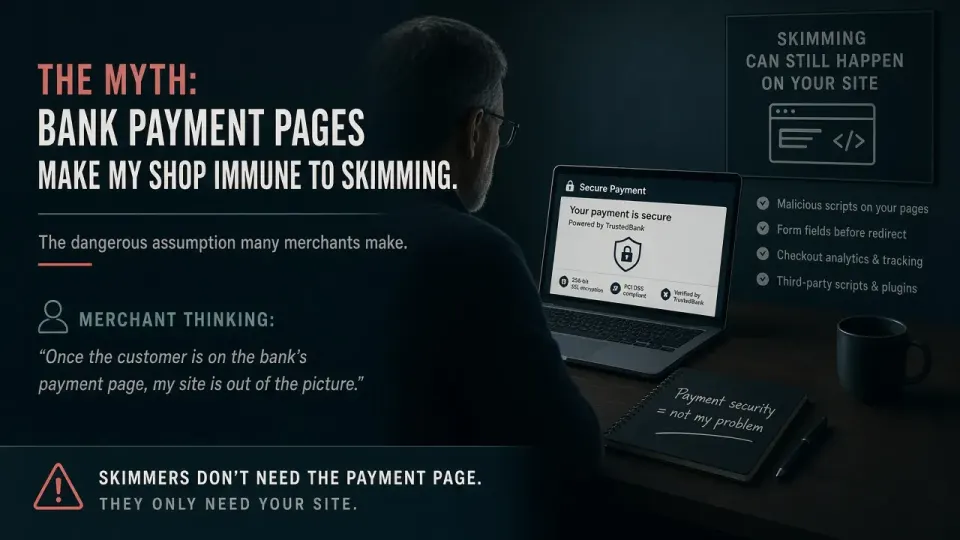
Many shops use payment methods where the customer is sent to the bank's or processor's page, or where the card form loads in a protected frame (iframe) from their server. That's good practice and significantly reduces the risk, but it doesn't remove it:
- The fake form described above works precisely on shops that use redirects.
- Other customer data (name, address, phone, email, order contents) is entered on your site and can be stolen regardless of the payment method.
- The attacker can change the settings of the payment plugin, for example the address the customer is redirected to or the access keys, if they have administrator access.
So the question isn't "do I take cards on my site" but "can someone change what the customer sees on my site".
Signs your shop may be leaking data

Signals from customers and the bank
- Customers report card fraud a few days or weeks after buying from you. One report may be a coincidence. Two or more in a short period are a serious signal.
- Your bank or payment processor contacts you. Banks analyse where misused cards were used before. If your shop is the common point, you'll get a query. Never ignore it.
- Customers mention entering their card twice, or that the first payment "failed" and the second succeeded. That's a typical sign of a fake form.
Technical signals
- The checkout page looks different than before: an extra field, a different layout, a card form where there used to be just a button.
- Unknown scripts on the checkout page, visible in the page source or developer tools.
- Requests to unknown domains while the customer types into the payment fields.
- Modified files in the payment plugin or the WooCommerce templates in the theme.
- An unknown administrator or changed payment plugin settings.
- A warning from a security plugin or your host about malicious code. What such messages mean is explained in Wordfence or your host reported malware.
Consequences for the shop
The consequences of skimming are more serious than with most other infections, because they involve other people's money and data:
- Losing the ability to accept cards. The bank or payment processor may temporarily or permanently suspend card payments until the shop is shown to be secure.
- Costs and fees. Depending on the contract with the payment processor, the merchant may bear part of the cost of the fraud and additional checks.
- Obligations under data protection law, which we cover below.
- Lost customer trust. A customer whose card was misused after buying from you rarely comes back, and easily tells others.
- Lower sales during the cleanup, because card payments are switched off or the shop is closed.
For all these reasons, with skimming you don't wait and you don't try to fix the problem "quietly".
How to check your shop

Use this checklist whenever woocommerce card skimming shows up again after a partial cleanup.
Look at the checkout page as a customer
Open the shop in a private window, without logging in, add a product to the cart and go to the checkout page. Compare it with how it's supposed to look. Don't enter a real card.
Check the scripts and requests
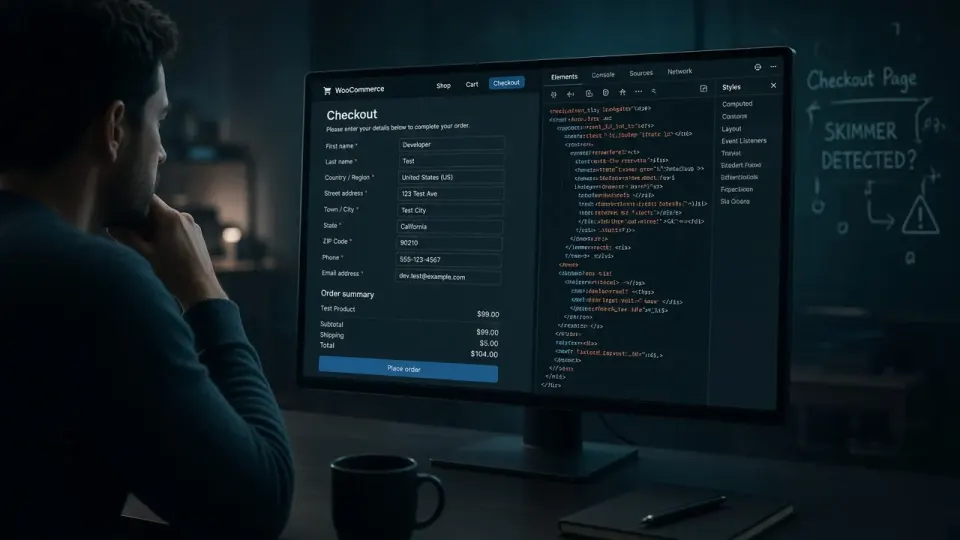
On the checkout page, open the developer tools (F12), go to the "Network" tab and start typing made-up details into the fields. If requests are sent to domains you don't recognise while you type or when you leave a field, that's a serious sign. In the "Sources" tab or the page source, look at all the scripts and check that you know each one. The usual ones are WooCommerce, your theme, the payment plugin, analytics and possibly a chat widget.
Review the files and database
Compare the WooCommerce and payment plugin files with the original versions, check the woocommerce folder in your theme and search the database for <script and unknown domains. Also check your Google Tag Manager account if you use one: who has access and whether there are tags you didn't add.
Look from the outside too
Our free website malware check reviews the shop's public HTML and JavaScript and looks for known malicious patterns. Skimmers often activate only on the checkout page and under certain conditions, so a clean result here isn't a guarantee, but a finding is a clear signal to act.
Ask your payment processor
If you're suspicious, contact your bank or payment processor. They have data on fraud reports and can confirm whether your shop shows up as a common point.
What to do immediately if you suspect skimming
Owners often underestimate woocommerce card skimming until Search Console or clients raise the alarm.
The order matters especially here, because it involves other people's data and possible legal obligations.
1. Preserve the evidence
Before deleting anything, make a complete copy of the files and database, and keep the server logs. Later it will be necessary to establish since when the skimmer was active and which orders were affected. If you delete the code before saving it, that becomes much harder.
2. Stop the leak
Temporarily disable card payments on the site. Leave other payment methods, such as cash on delivery or bank transfer, until the shop is clean. If you can't quickly work out where the code is, consider temporarily closing the checkout or the whole shop. Every hour an infected checkout page stays up means more stolen cards.
3. Notify your bank or payment processor
Get in touch right away. They have their own procedures for cases like this, can monitor misuse and block affected cards. Trying to hide the problem almost always ends worse, including losing the ability to accept cards.
4. Clean the shop
The procedure is similar to other infections, with special attention to everything related to payments:
- change all passwords and security keys, remove unknown administrators,
- replace WooCommerce, the payment plugin, the theme and other plugins with clean copies from official sources,
- check the customised WooCommerce templates in the theme and compare them with the originals,
- review the database and the settings of code-insertion plugins,
- check external services (Tag Manager, third-party scripts),
- find the backdoor and work out how the attacker got in.
What cleaning an infected shop looks like in practice is described in Hacked WooCommerce store: how we cleaned it up.
5. Rotate the payment keys
If the attacker had administrator access, they could have seen the payment plugin's API keys and secret keys. Generate new keys in the payment processor's control panel and enter them in the shop.
6. Check your legal obligations
If customers' personal data was stolen, data protection laws such as the GDPR in the EU, and Serbia's Law on Personal Data Protection, which follows the same model, generally require you to notify the supervisory authority of the breach without undue delay and, where feasible, within 72 hours of becoming aware of it, unless the breach is unlikely to result in a risk to people's rights. Where the risk is high, the affected customers must be informed too. We're not lawyers, so we recommend speaking to one straight away, but it's important to know this deadline exists and that it starts running from the moment you learn about the problem.
7. Inform your customers
Even where the law doesn't require it, it's the right thing to inform customers whose data may have been stolen and advise them to contact their bank. A short, honest message preserves trust far better than silence, especially if customers later find out where the problem came from. In the message, state the period during which the problem existed, what you've done and what you advise customers to do.
How to protect your shop

Payment off your site or in a protected frame
If possible, use a payment method where card details are entered on the bank's or payment processor's page, or in a frame (iframe) loaded from their server. That way card data never passes through your site's code. You still need to prevent a fake form, but the scope of the risk is much smaller.
Content Security Policy
The Content Security Policy HTTP header restricts which domains a page may load scripts from and which domains it may send data to. A well-configured CSP can prevent stolen data from leaving the page at all, even if a skimmer has been injected.
Monitoring the scripts on the checkout page
The checkout page should have a known, short list of scripts. An automated check that alerts you when a new or modified script appears on that page detects a skimmer within hours. The card payment security standard, PCI DSS, in its latest version explicitly requires merchants to keep an inventory of the scripts on payment pages and monitor them for changes, precisely because of this type of attack.
Fewer plugins, less access
Every plugin and every administrator account is a potential way in. The shop should have only the plugins it needs, updated regularly, and only a few administrators with two-factor authentication. Staff who process orders don't need the administrator role; "Shop Manager" is enough.
Basic protection
Regular updates, original plugins, strong passwords, backups and monitoring. The full guide is in Protect a WordPress site from hacking.
Monthly checklist for the checkout page
Someone who isn't a developer can go through this list in about fifteen minutes a month:
- ☐ The checkout page, opened in a private window, looks the same as last month.
- ☐ The list of scripts on the checkout page is the same as last month, with no new domains.
- ☐ The administrator list contains only people you know.
- ☐ WooCommerce, the payment plugin and the theme are up to date.
- ☐ There are no new warnings from the security plugin or your host.
- ☐ There have been no customer reports of card fraud.
- ☐ Only the people who need it have access to Google Tag Manager and other external services.
Next step

If customers have reported card fraud or your bank has contacted you, don't wait. Run a free website check and contact us right away or call +381 65 402 5000. We treat cases like this as urgent, through our Emergency Response package with priority during the working day, from €150. For shops that want ongoing monitoring, our maintenance plan starts at €30 a month.