Wordfence (or your host) reported malware: false alarm or a real problem?
This guide covers wordfence malware from confirmation through cleanup and prevention.
In the morning you open an email with a subject like "Problems found on your site", "Malware detected" or "Malicious file found". The sender is a security plugin on your site, usually Wordfence, or your hosting provider. The message lists file names that mean nothing to you and words like "critical", "malicious" or "modified".
Owners react to messages like this in one of two ways, and both are wrong. Some panic and delete everything that's flagged, and the site stops working. Others decide it's "another false alarm" and ignore the warning, until a few weeks later Google flags the site as dangerous.
The truth is somewhere in between, which is why it matters that you know how to read a warning before you do anything. Some warnings really are false alarms or aren't urgent. Others are a clear sign the site has been hacked. In this article we explain how to read a warning, what the most common messages mean, how to recognise a false alarm and the order in which to respond.
Where warnings come from

When dealing with wordfence malware, order matters more than speed.
Security plugins on the site
Plugins such as Wordfence, Sucuri Security, MalCare or Solid Security scan the files and database of your WordPress site, compare them with the original versions and with a database of known malware patterns, and email you a report. They only see the site they're installed on.
An important limitation: the plugin runs inside WordPress itself. If an attacker has gained access, they can disable it, modify it or configure it so malicious files aren't reported. That's why the absence of warnings isn't a guarantee the site is clean.
Server-level scanners
Many hosting providers use their own scanners, such as ImunifyAV, Imunify360, ClamAV or Linux Malware Detect. They scan every file in your hosting account, including other sites, old installations and backups. When they find something, they send a notice and sometimes move the file to quarantine or "clean" it themselves.
These scanners don't depend on WordPress, so an attacker can hardly switch them off. On the other hand, they don't always understand the WordPress context, so they produce false alarms on legitimate files more often.
External checks and Google
The third source of warnings is services that look at the site from the outside, like a visitor: Google Search Console, Google Safe Browsing, visitors' antivirus software and remote checking tools such as our free website malware check. They don't see files, but they see the consequences: redirects, spam, malicious scripts. If a warning comes from this source, the infection is already visible to your visitors and the response is urgent. More in Website blacklisted by Google.
How to read a warning
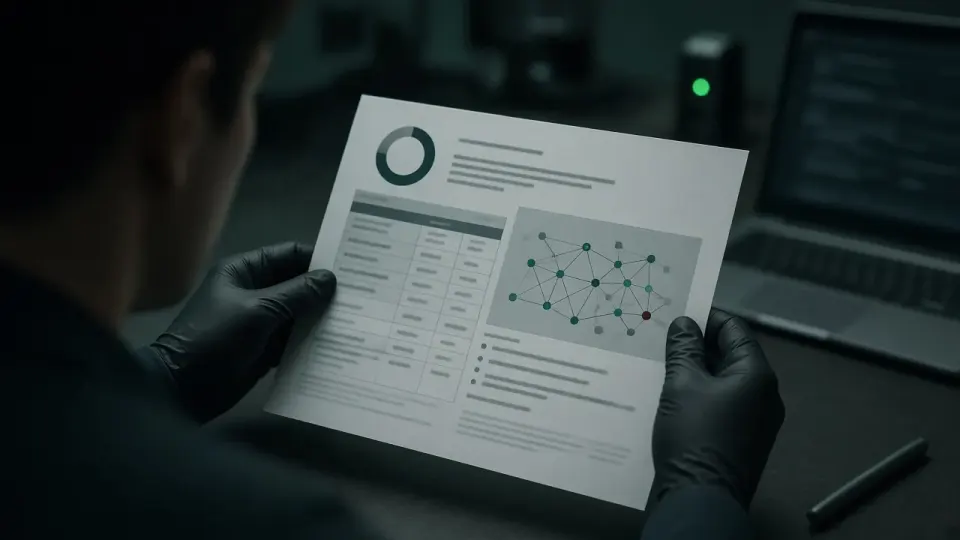
Every warning usually contains four pieces of information. Once you understand them, you already know a lot.
- Severity. Critical, High, Medium, Low, or with hosts a label like "malicious" or "suspicious". Critical and High need a response the same day.
- Type of problem. Whether malicious code, a modified file, an unknown file, a vulnerable plugin or a publicly accessible file with sensitive data was found.
- File path. Where the file is. This is often the most important detail. A PHP file in
wp-content/uploadsis almost always a problem. A modified file in the folder of a plugin you updated yesterday probably isn't. - Time. When the file was modified or when the problem was detected. If it matches when you ran updates or made changes, that's a useful clue.
The most common warnings and what they mean

"File appears to be malicious" or "Malicious code found"
The scanner found code in a file that matches a known malware or backdoor pattern. This is the most serious warning and should be treated as a hack until proven otherwise.
Check the path. If the file is in uploads, in the site root with an odd name, or in a folder that doesn't belong to any plugin, it's almost certainly malicious. If the file is part of a well-known plugin, compare it with the original version of the same plugin. If they differ and you didn't change it, that's also a sign of infection. What a real backdoor looks like is described in How to find a WordPress backdoor.
"WordPress core file modified"
A file belonging to WordPress core differs from the original. That can mean an attacker injected code into a system file, a common tactic because owners never open those files. There are harmless reasons too: some hosting providers modify certain files, and sometimes a developer made the change.
The safest fix is to replace core with the original files of the same version. Wordfence has an option to repair a file from the original, and reinstalling WordPress from the admin area or via WP-CLI gives the same result. But if core was modified, assume something else was too, and check the whole site.
"Unknown file in WordPress core directory"
There's a file in the core folders (wp-admin, wp-includes) that doesn't belong there. Sometimes it's left over from an old WordPress version after an incomplete update. Much more often it's a file the attacker placed there, with a name that looks like a system file, because nobody looks there. Open the file and check its contents. If it's obfuscated or you don't understand what it's for, remove it, but make a copy for analysis first.
"Modified plugin file" or "Modified theme file"
A plugin or theme file differs from the version on WordPress.org. The causes can be:
- the author changed the file without changing the version number, which does happen occasionally,
- a developer customised the plugin or theme directly in the files instead of through a child theme,
- the plugin is premium or pirated, so the scanner has no original to compare it with (we write about pirated plugins in Nulled WordPress themes and plugins),
- an attacker injected code into the file.
Again, the fastest way to resolve it is to replace the plugin or theme with a freshly downloaded copy from the official source. If a developer made changes, ask them first so you don't lose them.
"Publicly accessible config, backup or log file"
There's a file on the site anyone can download that contains sensitive data. Most often these are copies of wp-config.php with extensions like .bak, .old or .save, database exports (.sql), site archives (.zip) or error log files.
This isn't malware, but it's a serious risk. A copy of wp-config.php contains the database password. A database export contains users, encrypted passwords and customer data. Delete these files right away. Then check the hosting logs to see whether anyone downloaded them. If they did, or if you're not sure, change the database password and all administrator passwords.
"Plugin has a known vulnerability" or "Plugin has been abandoned"
One of your plugins has a publicly known vulnerability, or its author no longer maintains it and it's been removed from WordPress.org. This isn't a sign the site has been hacked, but it is a sign it easily could be. Update the plugin if a fixed version exists. If it doesn't, replace it with a different plugin or remove it.
"Admin user created" or "New administrator"
Some plugins alert you when a new administrator appears. If you didn't create it, this is one of the clearest signs of a hack. The procedure is described in Unknown admin account in WordPress.
"Password found in breach"
A user's password appears on public lists of leaked passwords. The site isn't necessarily hacked, but that password is unsafe, because attackers try it everywhere. Change it right away to a unique password and enable two-factor authentication.
Hosting: "File quarantined" or "Malware cleaned"
The host's scanner moved a file to quarantine or removed suspicious code from it on its own. That sounds like good news, but there are two catches. First, if it was a false alarm, part of the site may stop working. Second, if it was real malware, the host only removed the symptom. The way the attacker placed the file is still open, so the file comes back.
How to recognise a false alarm
False alarms are common, especially with server-level scanners. A few signs a warning probably isn't a real problem:
- The file is part of a well-known plugin and identical to the original of the same version from the official source.
- The modification time matches an update you or your developer ran.
- The code is readable and makes sense. Some legitimate plugins use functions like
base64_decode, for example for images or settings, but in a clear and documented way. - The file is a cache or backup created by a plugin for caching or backups, in the expected location.
- The file belongs to the security plugin itself, which contains malware signatures for comparison.
Signs a warning probably is a real problem:
- a PHP file in
uploadsor in an image folder, - a file with a random name, or a name imitating a system file, in the wrong place,
- long obfuscated strings at the start or end of a file that otherwise looks normal,
- a file modified when nobody was working on the site, especially at night or at weekends,
- several warnings at once, in different places.
None of these signs alone is conclusive proof, but two or more together almost always mean an infection. If you're not sure, assume the worst. Checking a legitimate file costs you a few minutes. Ignoring real malware can cost weeks of recovery.
An illustrative example: triaging one report
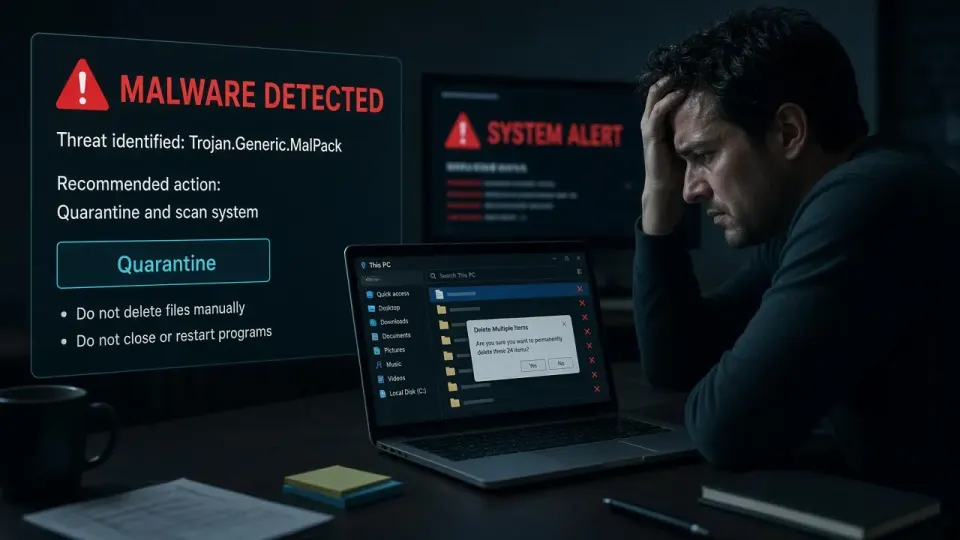
Use this checklist whenever wordfence malware shows up again after a partial cleanup.
Imagine you received a report with five items. Here's how the triage would look:
- "Modified plugin file: wp-content/plugins/contact-form-7/includes/...". The plugin was updated two days ago, and the file was modified at the same time. Comparing it with the original of the same version shows the files are identical. False alarm; the scanner probably had an older original to compare against.
- "Publicly accessible file: wp-config.php.bak". A developer made a copy of the configuration a year ago and forgot about it. Not malware, but urgent: the file is deleted right away, the logs are checked, the database password is changed.
- "Plugin has a known vulnerability: [plugin name]". A newer version with a fix exists. Not a hack; update the same day.
- "File appears to be malicious: wp-content/uploads/2025/03/cache.php". A PHP file in the images folder, with obfuscated code. Confirmed infection.
- "WordPress core file modified: wp-includes/load.php". Modified at three in the morning, when nobody was working on the site. Probably part of the same infection.
The conclusion from this report isn't "two items are false, everything's fine", but "the site has been hacked and needs a full cleanup". Items 4 and 5 on their own mean the attacker has or had access. Items 2 and 3 probably show how they got in. Triage like this gives you a clear picture in a few minutes, instead of panic or ignoring the problem.
What not to do
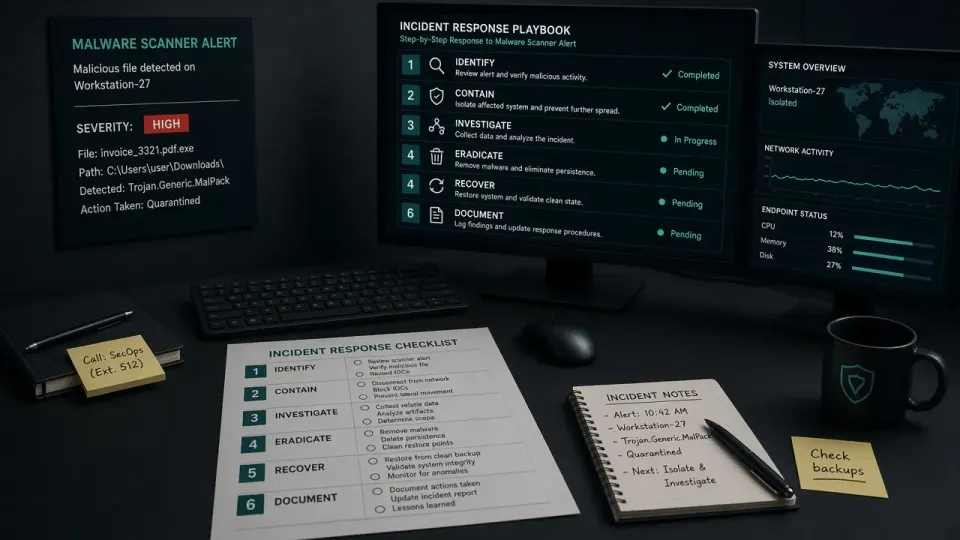
Owners often underestimate wordfence malware until Search Console or clients raise the alarm.
- Don't delete everything blindly. Deleting system or plugin files can take the site down. The right approach is replacement with the original, not deletion.
- Don't ignore recurring warnings. If the same type of warning keeps arriving for weeks, it isn't a false alarm that will pass on its own.
- Don't whitelist everything just to stop the emails. That switches off your early-warning system.
- Don't rely only on "Repair" or automatic cleaning. Repairing one file doesn't remove the backdoor that modified it.
- Don't conclude everything's fine because the warnings stopped. The attacker may have disabled the plugin.
Step-by-step procedure when you get a warning

1. Record and keep
Keep the warning email and write down the file paths. If your host offers quarantine, don't delete files from it until you've finished checking.
2. Make a backup
Before any changes, make a copy of the files and database. If the site is infected, that copy is for analysis. If it's a false alarm, it lets you restore the site quickly if something goes wrong.
3. Triage the warnings
Go through the list above and, for each warning, decide whether it's probably a false alarm, a problem that isn't a hack (a vulnerable plugin, a public backup) or a sign of infection.
4. Fix what isn't an infection
Delete publicly accessible backups and configuration copies, update or replace vulnerable plugins, change leaked passwords.
5. If there's a sign of infection, treat the site as hacked
A single confirmed malicious file is almost never the only one. Change all credentials, replace core, themes and plugins with clean copies, review uploads and the database, and work out how the attacker got in. The order of steps is described in My site is hacked: what to do first.
6. Scan again
After the cleanup, run a new scan with the plugin and ask your host to rescan the account. Both checks should come back clean.
7. Check the site from the outside
Run a free website check to see whether redirects, spam or hidden code are visible from the internet, and check Google Search Console for security warnings.
Making scanners work for you, not against you
- Warning emails should go to an address you actually read, not a developer's old address or an info@ account nobody opens.
- Set the notification level so that critical and serious warnings arrive, without dozens of messages about trivia that train you to ignore everything.
- Don't rely on a single scanner. A combination of a plugin on the site, a server-side scanner and an external check catches far more than any single tool.
- Update the security plugin itself, because the database of malware patterns changes constantly.
- Consider monitoring. With our maintenance plan we watch the warnings for you and respond before the problem becomes visible to clients.
Next step

If you've received a warning and aren't sure whether it's a false alarm or a real problem, run a free website check and send us the text of the warning. We'll quickly tell you whether you need to act and how. For urgent cases, call +381 65 402 5000. Cleanup starts at €100, and maintenance with monitoring at €30 a month.
Keep notes while you investigate wordfence malware so you can prove what changed and when.