My site is hacked: what to do first and in what order
There is a moment every site owner remembers. You open your page and instead of it you see someone else's content, or you get a message from the host, or someone tells you the site takes them somewhere strange. The first thought is always the same, and always in panic: my site is hacked, what do I do first.
In short: do not delete in panic. Make a backup, change passwords, confirm the symptom, then clean in order - not the other way around.
If you are there now, one thing first. Do not immediately delete everything you see. Panic deletion is the most common mistake and almost always makes the situation worse, because you lose the trail of how the attacker got in, and sometimes you also delete part of the site that was still correct. In this article we walk you through a calm, proven step order: what to do in the first hour, how to confirm what is actually happening, in what order to clean, and at which point it makes sense to hand the job to someone who does this every day.
First take a breath: damage rarely outruns you
It sounds like empty advice, but it is not. Most of the damage from a hack does not happen in the first hour. It happens over the days while the problem stays unresolved, or while someone in a hurry stacks a second mistake on top of the first. The attacker has usually already done what they wanted. Your job now is not to react in a second, but to react accurately.
What is urgent is stopping further damage and preserving evidence. What is not urgent, and what you should not do in panic, is irreversible deletion. The difference between those two things is the whole point of this article.
Before you touch anything, it is worth writing down on paper or in a note exactly what you see. Which symptom, when you first noticed it, whether others see it or only you, from which device. Those details will help later both during cleanup and when talking to your host or to someone helping you.
The first hour: what to do in order
This section is a sequence that makes sense for almost every case. You do not need to be a technical expert to get through it.
Make a full copy before any change
This is the most important first step and the one most often skipped. Make a copy of all files and the database, even if the site is infected. That copy is your only protection if something goes wrong during cleanup, and the only data source if you later need to reconstruct what happened and when.
The easiest way to make a copy is through the hosting panel: zip the whole folder where the site lives, and export the database separately. If you have a backup plugin that works, that is fine too, as long as the backup is stored somewhere outside the site itself, not on the same server that is compromised.
Change the key passwords
Immediately change the password for WordPress admin, for the database, for the hosting panel, and for FTP access. If the attacker got in through a stolen password, this closes their easiest way back. If they got in another way, changing passwords still does no harm.
Important note: changing a password does not always invalidate sessions that are already open. If the attacker stole a login cookie, not only the password, they can still be inside. That is why after changing passwords it is worth destroying all active sessions, which we cover a little later.
Establish exactly what you see
Different symptoms mean different things, and lead to a different first move. See which case is yours:
- The site redirects visitors to someone else's pages, often only from mobile or only from search.
- Search results show spam in a foreign language, pharmacies, gambling.
- Google or the browser shows a warning that the site may be hacked.
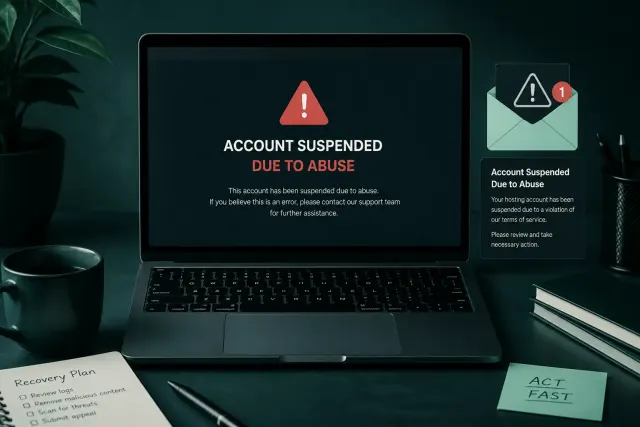
- The host sent a notice about abuse or suspended the account.
- You cannot log into the admin.
- The site is visibly altered, with injected content or a message from the attacker.
Write down which one is yours, because it determines the next logical step. Some of these cases are more urgent than others, and some need a special approach.
If possible, temporarily limit access to the site
If the site is actively causing harm, redirecting visitors or sending spam, it makes sense to put it in maintenance mode temporarily or restrict access while you look for the cause. That stops further reputation damage, which can outlast the infection itself. This is not a required step for every case, but it is smart when damage is ongoing.
How to confirm the site is really hacked
Sometimes what looks like a hack is not a hack, but a plugin error, an expired domain, a hosting problem, or a bad setting. Before you go into cleanup, it is worth confirming that there really was an intrusion.
Check how the site looks to a stranger
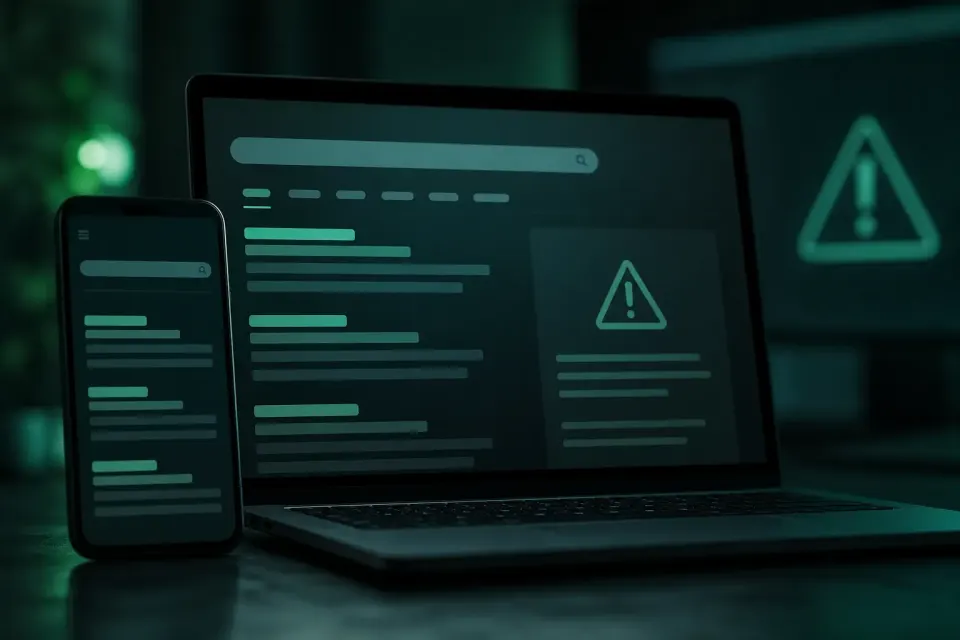
Open an anonymous browser window to clear login cookies. Then do not type the address directly: search for the site name on Google and click the result. Many infections activate only when the visitor comes from search, so this step shows what direct opening does not. Repeat the same on your phone, because a large share of attacks targets mobile users specifically.
Look at Google Search Console
If you have Search Console set up, you can see there whether Google reported a security problem and exactly which kind. That saves a lot of time, because it often also shows the specific URLs where the problem was found. If you do not have Search Console, this is the moment to set it up, because it is the only channel through which Google communicates with you directly about these things.
Check the user list and recent changes
In the admin, open the full user list and go through all of it, not just the first few. A new administrator account created at a time when none of you signed in is a clear sign. Pay attention to the registration date. Likewise, if you see files modified at a time when nobody touched anything, that is a trail.
Run a free remote check
Before you go deeper, a free remote check gives a quick picture of whether something suspicious is visible from the outside. It reviews the publicly available content of the site and looks for known malware patterns, hidden scripts, and redirects. It requires no account or installation and finishes in under a minute. Its limit is that it sees only what is public, so a clean result is not proof that everything is fine, but a suspicious result quickly confirms the problem.
In what order to clean a hacked site
Once you have confirmed the site is hacked and you still need a clear cleanup plan, here is a cleanup order that reduces the chance you break something or miss something.
First determine the scope
Check how much is actually affected. Is it one page or the whole site. Does it happen to all visitors or only some. Is only this site hit, or other sites on the same hosting account as well. That picture tells you whether you are looking for one injected line of code or something that went deeper and spread.
Find and remove the malicious code
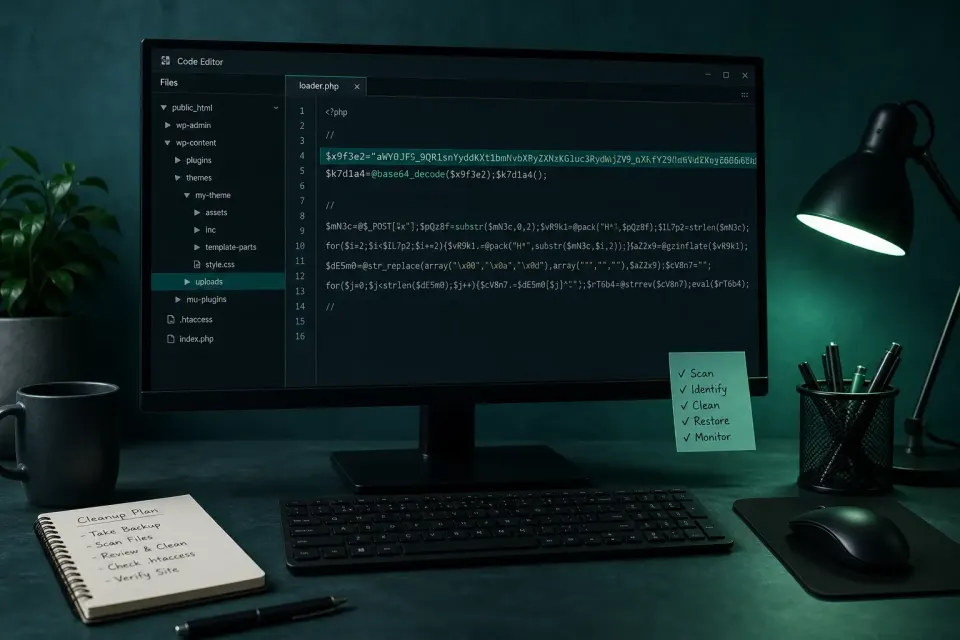
Malicious code most often hides in a few places. In the theme, usually in a file that loads on every page. In the database, in fields loaded on every request. In the uploads folder, as a PHP file that has no business being there. In the mu-plugins folder, which WordPress loads automatically and does not show as a normal plugin. And in the htaccess file, as redirect rules.
The code rarely looks readable. More often it is a long string of letters and numbers without a single recognizable word, which only decodes at execution time. If you open a file and see a line that stretches across the entire screen, that is almost certainly it. Before you delete it, look at what it says, because the date and content often tell you when it was planted and through which hole.
Close the entry the attacker used
This is the step most often skipped, and it decides whether the problem comes back. Removing the code without closing the entry buys you a few days. Closing the entry means updating everything that is outdated, removing plugins and themes you do not use, and checking that a weak password was not used. Most attacks enter through exactly those three holes.
Check what was left as a backup
Attackers as a rule leave more than one entry, because they expect the first to be found. That can be an extra administrator account with an innocent name, a backdoor file in an unusual place, or a scheduled task that reinstalls the code a few days later. If you do not check for that, the infection returns and you have no explanation why.
Destroy all sessions and rotate security keys
Finally, destroy all active sessions and change the security keys WordPress uses for login cookies. That throws the attacker out even if they earlier stole a cookie, not only the password. This is the last step that closes the door behind you.
Why your site specifically was targeted
Almost everyone who experiences a hack for the first time asks the same question: why me. The site has little traffic, sells nothing expensive, holds no confidential data. The answer is that the attacker usually never cared about you personally.
A huge share of attacks on WordPress sites is not targeted. Automated scripts crawl the internet and check sites one after another looking for known weaknesses. When they find one, they exploit it and move on to the next site on the list. They do not care what your site does. They care what your server can do for them. And a server can send spam from an address with a clean history, host a fake page for stealing data, redirect visitors to ads, or simply be one of hundreds of infected sites that together do something larger.
That is why you should not feel specially targeted, but you also should not comfort yourself that it was a coincidence that will not repeat. The same weakness that let the first script through will let the next one through if it is not closed. That is why the prevention section at the end of this article is as important as the cleanup itself.
How long until the site is back to normal
This is the question everyone asks, and the honest answer depends on several things. Cleanup itself, when you know where to look, is often a job of a few hours to a day or two. But returning to a fully normal state is more than removing the code.
If Google showed a warning, removing it requires a separate request for review after cleanup, and Google responds within a few days to two weeks. If the domain ended up on email blacklists, reputation recovery is gradual and requires sending a normal volume of mail for a while. If the site dropped in search rankings because of spam content, that also returns gradually over weeks, not all at once.
That is why the fastest path back to normal is to do the job thoroughly the first time, not in a rush: because every miss extends exactly these slower recovery processes. Better to take an extra day on cleanup than a month fixing the consequences of speed.
Special case: I cannot log in
If your symptom is that you cannot get into the admin, the order is a little different. It can be a changed password, locked access, a malicious mu-plugin, a damaged htaccess, or a redirected login page.
Do not reset the hosting account blindly. First access the files through the hosting panel. Rename suspicious drop-in files if any exist. Check htaccess. Only then, if you must, reset the password directly in the database. Abruptly resetting the whole account can also wipe the trails you need to understand what happened.
What not to do under any circumstances
These five mistakes are made most often, and each of them can turn a solvable problem into a much larger one.
Do not delete everything that looks suspicious
If you delete files before you have seen what is in them, you lose the only trail of how the attacker got in. Without that you fix the consequence and wait for it to repeat. Always look first, then remove.
Do not reinstall over the existing install
It sounds logical, but in most cases it fixes nothing. A reinstall replaces core files, while malicious code almost always sits in the theme, plugins, uploads folder, or database. Those are exactly the places a reinstall does not touch.
Do not restore an old backup blindly
Restoring a backup helps, but only if you know when the infection started. If you restore a copy from a week ago and the code was injected a month ago, you restored an infected site and also lost all content from the meantime. First establish a timeline, then decide about the backup.
Do not install a pile of security plugins at once
Five plugins doing the same job do not mean more protection. They mean a slower site, possible conflicts, and five places to track. Besides, no security plugin installed after a breach will remove code that is already there.
Do not change hosting in the first moment
Moving an infected site to a new server only transfers the problem, and in the meantime you lose the logs that were your most useful trail. Clean first, then think about a move if it is needed at all.
When it makes sense to call for help
Not every case is for solving alone, and that is fine. It is worth considering calling for help if you find yourself in any of these situations.
If you cannot get into the site at all, because access was taken from you. If the hosting account is suspended, so the clock is ticking while you lose visitors and reputation. If you already cleaned once and the infection came back, which means a backdoor stayed undiscovered. If it is a shop or a site income depends on, where every hour of downtime costs. Or simply if this article tells you the job is bigger than you want to handle yourself.
There is no shame in that. Cleaning a hacked site is a job done faster and more safely by someone who does it every day and knows where to look, because they have already seen the same patterns a hundred times.
There is also a practical reason why professional help often turns out cheaper than solving it alone, even though at first glance it looks the opposite. The time you spend searching files, reading conflicting forum advice, and worrying that you missed something usually costs more than a cleanup. And if in that process you stack a mistake on top of the existing one, for example delete the wrong file or restore an infected backup, fixing that mistake adds to the original problem. A clear assessment of your own time and knowledge is part of the decision, not a weakness.
How to prevent this from happening again
When the first panic passes and the site works again, comes the part most people skip, and which matters most for peace later. A site that was hacked once has higher odds of being attacked again, partly because it is already on lists used by automated scripts, partly because the original cause often remains unresolved.

Three things make the biggest difference. Regular updates of core, theme, and all plugins, because most attacks target vulnerabilities that were patched long ago, only on sites where nobody applied the patch. Strong, unique passwords with two-factor login, which closes the second most common entry. And regular automatic monitoring, which catches changes nobody made on purpose, on a schedule, not when you happen to remember.
That last point matters most precisely because of everything described above. If malicious code tries to stay invisible to the site owner, the only reliable defense is something that watches instead of you, regularly and automatically, and compares the current state with the previous one.
A first step you can take right now
If you have read this far and are still not sure where you stand, the first step does not have to cost anything. A free quick scan reviews the publicly available content of your site and looks for known malware patterns, hidden scripts, and suspicious redirects. No account, no installation, usually under a minute.
It is worth knowing its limit. That check sees only what is publicly available over the internet. If the code is hidden in a file or the database, it will not find it. A clean result is a good sign, but for a reliable answer you need a review of the files and database on the site itself.
If the situation is serious, if you cannot get into the site, if the account is suspended, or if you simply do not want to deal with it yourself, get in touch. Send the site address and a short description of what is happening. Urgent cases go ahead of regular requests, because with a hacked site every day means lost visitors and further damage.