I can't log in to WordPress and my password doesn't work: has my site been hacked?
This guide covers cant log in to from confirmation through cleanup and prevention.
You open your WordPress login page, type the username and password you've used for years, and get a message saying the password is wrong. You try again, more carefully. Same thing. You click "Lost your password?" and the email never arrives. Or you get a message that no user with that name exists.
At that moment most owners assume the worst: someone got into the site and locked them out. Sometimes that's exactly what happened. But just as often the cause is something harmless, like a security plugin that temporarily blocked your IP address or a browser cache holding on to an old session.
In this article we explain how to tell a hack from an ordinary technical glitch in a few minutes, how to regain access safely and, if it turns out the site really has been hacked, what you must do right after getting back in, because in that case getting your password back on its own solves nothing.
First: don't panic and don't rush

When dealing with cant log in to, order matters more than speed.
Before changing anything, write down exactly what you see: the exact error message, whether the login page opens at all, whether the site looks normal from the outside, and when you last logged in successfully. This information is useful both to you and to anyone who helps you.
Avoid trying the password dozens of times in a panic. Many security plugins temporarily block the IP address after a few failed attempts, and the problem gets bigger than it was.
Common causes that aren't a hack

A security plugin has blocked you
Plugins such as Wordfence, Limit Login Attempts, iThemes/Solid Security and similar block logins from your IP address for a while after a certain number of failed attempts. The message usually mentions too many attempts or a lockout. The fix is to wait for the lockout to expire, try from another network (for example, mobile data), or temporarily disable the plugin, as described below.
The login page address was changed
Some security plugins change the standard /wp-admin or /wp-login.php address to something else, for example /my-entrance. If someone else did this (an agency, a previous administrator) or you've forgotten, the standard address returns a 404 or redirects to the homepage. Check your notes, emails from whoever built the site, or the plugin settings through your hosting.
Cache and cookies
The browser sometimes holds on to an old or corrupted session. Try logging in from a private window or a different browser. If that works, clear the cookies for that site in your main browser.
A two-factor authentication problem
If you use two-factor authentication and you've changed phones, deleted the authenticator app or your phone's clock is wrong, the codes won't work. The backup codes you received during setup solve this. If you don't have them, the 2FA plugin can be temporarily disabled through your hosting.
An error in a plugin or theme
After an automatic update, a plugin sometimes causes an error: a blank white screen, an endless redirect back to the login page or a critical error message. In that case the problem isn't the password; the site simply can't complete the login. WordPress often sends the administrator an email about the critical error, with a link to recovery mode.
A wrong site address in the settings
If someone recently changed the domain, switched from http to https or moved the site to another host, the site address in the database (the siteurl and home options in the wp_options table) may be wrong. The result is an endless loop back to the login page or a redirect to the old address. Both values should be the exact address of your site, with the correct protocol.
The reset email doesn't arrive for technical reasons
Many sites don't send email reliably because the hosting's mail isn't properly configured, so messages end up in spam or aren't sent at all. Check your spam folder. If there's nothing there either, that alone doesn't mean a hack.
Signs the site really has been hacked
The following signs suggest the problem isn't technical but that someone else has taken control:
- The reset email is sent, but not to you. If you're sure the email isn't arriving, not even in spam, while the screen says it was sent, the attacker may have changed your account's email address.
- A message that the user doesn't exist. Your account has been deleted or its username changed.
- You can log in but have no administrator rights. Your role has been changed, for example to "Subscriber", so you can't see settings, plugins or users.
- The site behaves oddly from the outside. It redirects visitors, shows unknown content, Google shows a warning or spam results.
- A notice from your host about abuse, spam email or malicious files.
- A message demanding money. It's rare, but an attacker sometimes leaves a message asking for payment to restore access. Don't pay. Access can almost always be restored through your hosting, and paying guarantees nothing.
If you see any of these signs, treat the situation as a hack. The first steps are described in My site is hacked: what to do first.
Quick diagnosis: what you see and what it probably means

| What you see | Most likely cause | First step |
|---|---|---|
| A message about too many attempts or a lockout | Security plugin | Wait, or disable the plugin through the files |
/wp-admin returns 404 or goes to the homepage |
Login address changed | Check the plugin settings or your notes |
| White screen or "critical error" | Plugin or theme error | Disable plugins through the files |
| Endless loop back to the login page | Cache, cookies or wrong site address | Private window, then check siteurl in the database |
| Wrong password, reset email arrives | Forgotten or changed password | Reset the password, then review users |
| Wrong password, reset email arrives nowhere | Account email changed or a mail problem | Check user_email in the database |
| "User doesn't exist" | Account deleted or renamed | Review the wp_users table |
| You get in but without admin rights | Role changed | Check wp_capabilities in the database |
The table isn't a substitute for a proper check, but it helps you start in the right direction straight away. The last three rows almost always mean someone else had access.
How to regain access safely
Use this checklist whenever cant log in to shows up again after a partial cleanup.
Whatever the cause, access can almost always be restored through your hosting account, because that's where you have direct access to the files and database. If you can't get into the hosting either, first contact your host's support and regain access to that account, then continue.
Method 1: "Lost your password?"
If the cause is a forgotten password and the email arrives, this is the simplest route. Set a new, strong password you don't use anywhere else.
Method 2: Disabling plugins through the files
If you suspect a security plugin is blocking you or a plugin is causing an error, open the wp-content/plugins folder through your hosting's file manager or FTP and rename that plugin's folder, for example from wordfence to wordfence-off. WordPress then disables it automatically. If you don't know which plugin is the problem, rename the whole plugins folder to plugins-off, log in, restore the folder name and reactivate the plugins one by one.
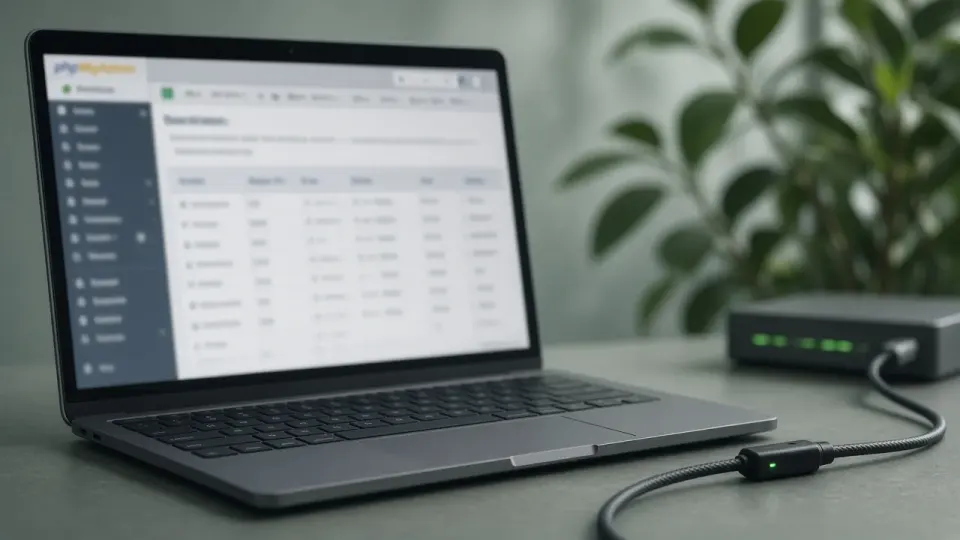
Method 3: Changing the password through the database (phpMyAdmin)
In your hosting control panel, open phpMyAdmin, select the site's database and the wp_users table (the wp_ prefix may be different on your site).
- Find your account and check the
user_emailfield. If it isn't your address, that's a strong sign of a hack. Enter your address. - In the
user_passfield, select the MD5 function and type a new password. WordPress accepts this format and automatically converts it to a more secure one on the first login. - Save and try logging in.
If your account doesn't exist at all or has no administrator rights, check the wp_usermeta table, the wp_capabilities field for your account. For an administrator the value should be a:1:{s:13:"administrator";b:1;}. Editing the database requires care, so export the database before making any change.
Method 4: WP-CLI
If your host offers SSH access and WP-CLI, this is the fastest and clearest method. A few useful commands:
wp user list --role=administratorshows all administrators with their email addresses and registration dates,wp user update USERNAME --user_pass="new-strong-password"sets a new password,wp user update USERNAME --user_email="you@yourdomain.com"restores your email address,wp plugin deactivate plugin-namedisables a plugin.
The very first command often shows the most important thing: administrators you don't know.
Method 5: Your host's support
If none of this is familiar, your host's support can reset the password or disable a plugin for you. Tell them you suspect a hack as well, because they can check the logs and see where the logins came from.
If the site was hacked: what to do right after getting in
Owners often underestimate cant log in to until Search Console or clients raise the alarm.
When you regain access to a hacked site, the job isn't done; it's only starting. An attacker who changed your password almost certainly has other ways to get back in.
1. Kick everyone out
Change the security keys (salts) in wp-config.php. You can generate new keys at the official WordPress address for that purpose. Changing the keys invalidates all active logins, including the attacker's.
2. Review all users
Open the user list and look at every administrator and editor. Remove accounts you don't know, but first note their names, email addresses and registration dates, because they help establish when the attack began. Why deleting alone isn't enough is explained in Unknown admin account in WordPress.
3. Change all other passwords
Hosting, FTP/SFTP, the database, the email account linked to the site. If you used the same password elsewhere, change it there too.
4. Find the backdoor
An attacker with administrator access could have installed a plugin, modified the theme or uploaded files. Review the plugin list, compare it with the contents of wp-content/plugins, check the uploads folder and replace core, themes and plugins with clean copies. How to look for a hidden entry point is described in How to find a WordPress backdoor.
5. Work out how the attacker got in
The most common causes are a stolen or weak password, the same password used on another site that leaked, a vulnerable plugin or a pirated theme. If the way in stays open, the same problem comes back. More in Infection returns after cleanup.
6. Check the site from the outside
Run a free website check and look at site:yoursite.com in Google to see whether the attacker has already injected spam or redirects.
7. Look at the hosting logs
Most hosting plans keep access logs for the last few days or weeks. Look for requests to wp-login.php and xmlrpc.php. A large number of requests from different addresses means the site was targeted by automated password guessing. A successful login from an unknown IP address, just before you lost access, usually marks the moment of the break-in. If you're not sure how to read logs, your host's support can usually do it for you.
8. Check the email account too
If the attacker changed your WordPress account's email address or the password reset went to them, check the email account you use for the site as well. Change its password, enable two-factor authentication and review the mail forwarding rules. A hacked email account lets the attacker reset the site's password again whenever they like.
How attackers get hold of passwords

Understanding this helps you choose the right protection:
- Password guessing. Automated tools try thousands of common passwords on the login page and through
xmlrpc.php. - Passwords leaked from other sites. If you used the same password on a site that was breached, it's on the lists attackers try on every other site.
- Data-stealing programs. If the computer you manage the site from is infected, passwords and active sessions can be stolen straight from the browser. One common way computers get infected is described in Fake CAPTCHA on a website.
- Fake emails (phishing) that look like a message from your host or WordPress and ask you to log in through a fake page.
- A vulnerable plugin that allows a new administrator to be created without any password.
How to prevent it from happening again

Most cases of being locked out of the admin area could have been prevented with a few simple measures:
- Two-factor authentication for all administrators. This is by far the most effective single measure, because a stolen password on its own is no longer enough.
- A unique password for WordPress, not used on any other site, stored in a password manager.
- Limiting login attempts, so automated password-guessing attacks don't succeed.
- As few administrators as possible. Anyone who doesn't need to change settings should have a lower role, such as "Editor" or "Author".
- A correct and protected administrator email address, because access is recovered through it. If that email account is hacked, the site is at risk too.
- A note of your access details kept somewhere safe: the login address, the hosting account, the 2FA backup codes.
- Regular updates of core, themes and plugins.
The full guide is in Protect a WordPress site from hacking.
When it's time to call a specialist
If you've regained access and everything points to a technical cause (a plugin lockout, a forgotten password), you probably don't need help. Call a specialist if:
- you found unknown administrators or a changed email address,
- the site redirects visitors or Google shows a warning,
- your host reported malicious files or spam,
- you regained access and the password was changed again a few days later,
- you'd rather not risk editing the database.
Next step

If you can't get into WordPress and suspect the site has been hacked, run a free website check to see what's visible from the internet. If you need help regaining access and cleaning up, get in touch or call +381 65 402 5000. Urgent cases are handled during the working day through our Emergency Response package, from €150.