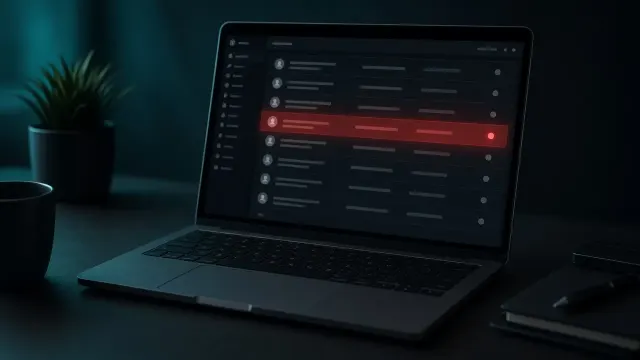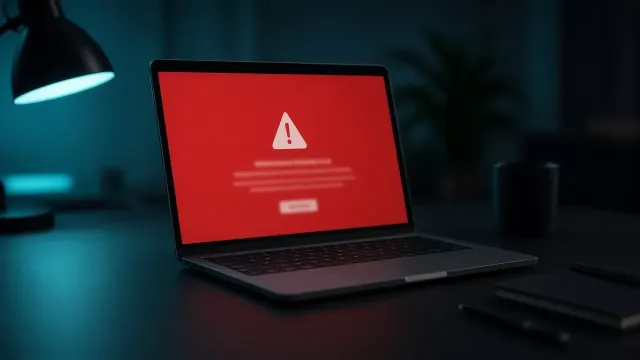
A fake CAPTCHA check appears on my website: what it is and why it's dangerous
This guide covers fake captcha on website from confirmation through cleanup and prevention.
A client tells you a window popped up on your site saying "Verify you are human". It looked like the familiar Cloudflare or Google check, but instead of clicking on pictures of traffic lights, they got instructions: press the Windows key and R, then Ctrl and V, then Enter. One person found that odd and closed the page. Someone else followed the instructions.
You open the site and see nothing unusual. No window, no check, everything works as always.
This is one of the most widespread forms of website infection of the past two years, known as fake CAPTCHA, ClickFix or ClearFake. Unlike most infections, which attack the site itself, this one uses your site to attack your visitors' computers. That makes it especially serious, and it calls for a fast response.
In this article we explain how the fake CAPTCHA works, why site owners usually don't see it, how to confirm the infection and the order in which to remove it. At the end there's a short guide for visitors who have already followed the fake instructions.
What a fake CAPTCHA looks like

When dealing with fake captcha on website, order matters more than speed.
A real CAPTCHA asks you to tick a box, select images or solve a simple task in the browser. It never, under any circumstances, asks you to run anything on your computer.
A fake check usually looks like this:
- a full-page window with a logo resembling Cloudflare, Google reCAPTCHA or hCaptcha,
- a message like "Verify you are human" or "Verification required",
- a button such as "I'm not a robot" or "Verify",
- after the click, instructions in a few steps: open the Run dialog (Windows + R), paste (Ctrl + V) and press Enter. On Macs the instructions ask you to open Terminal.
The key detail is that at the moment of the click, the site has already copied a command to the clipboard without the visitor knowing. When the visitor pastes and runs that command, they themselves, with their own hands, start a program that downloads malware onto their computer.
What happens to the visitor's computer
The command usually downloads a so-called infostealer, a program that steals data. It typically collects:
- passwords saved in the browser,
- cookies from active sessions, so the attacker can get into accounts without a password, even with two-factor authentication enabled,
- card details saved in the browser,
- crypto wallets,
- sometimes files from the desktop.
The attacker then uses this data to take over email accounts, social media, business systems and bank accounts, or sells it on. The visitor usually has no idea the problem started on your site.
Why this attack works so well

At first glance it seems impossible that anyone would run a command just because a website told them to. In practice, the scam works for several reasons.
People are used to checks. Almost every day we click "I'm not a robot", pick traffic lights and wait for Cloudflare to check the browser. One more check doesn't raise suspicion, and a familiar-looking logo is reassuring.
The steps look technical and official. Instructions with key combinations feel like a security procedure, not a scam. Many people don't know what the Run dialog does and don't see what they pasted, because the command isn't shown in full.
The site is known and trusted. The visitor isn't on a shady site but on the site of a company they know, a local shop or an association. The trust they have in you carries over to the fake check.
There's no obvious sign of an attack. After the command runs, nothing happens on screen. The visitor keeps using the site while the program runs in the background.
Consequences for the site owner
Although the direct victims are the visitors, the consequences reach you quickly:
- Google Safe Browsing flags the site as dangerous, so visitors in Chrome, Firefox and Safari see a red warning before entering the site.
- Antivirus software and corporate network filters block your domain, so clients at companies can't open the site even after it's cleaned, until the domain is removed from their lists.
- Your hosting provider may suspend the account when it receives an abuse report. What to do then is covered in Hosting account suspended for abuse.
- Search rankings drop for as long as the warning is active.
- Your reputation suffers when a client learns their account was stolen after visiting your site.
Why the site owner doesn't see the fake check

This confuses almost every owner. The code is built to show up only for "real" targets and to hide from everyone who might notice it.
It's shown only once
Once a visitor has seen the fake check, the code leaves a marker in the browser (a cookie or a local storage entry). On the next visit, the window no longer appears. If you saw it once yourself and closed it, you probably won't see it again on that computer.
Only for certain systems and visitors
Many variants check the operating system and show up only for Windows users, because the commands are written for Windows. Some also check the visitor's country, where they came from (for example, Google search) and whether they're on a mobile phone.
It hides from logged-in administrators
If you're signed in to WordPress, the code usually recognises that and doesn't appear. The same goes for well-known security tools and search engine crawlers.
The code is loaded from elsewhere
The malicious script often isn't fully on your site. Only a small piece sits on the site, and it loads the rest from an external server. Some known variants even store that piece on public blockchain services, so it can't simply be blocked by domain name. That's why reviewing the site's files sometimes doesn't reveal the whole code, only the place where it's injected.
The typical course of this infection
Most fake CAPTCHA cases follow a similar pattern, and it's worth knowing because it explains why simply removing the window isn't enough.
- Entry. An automated tool finds a vulnerable plugin or tries stolen passwords and gets administrator access or the ability to write files.
- Persistence. The attacker leaves a backdoor file or creates a new administrator to keep access even after the vulnerability is patched.
- Injection. A small script is added to the site, usually in the theme header or a plugin's settings, which loads the fake check from an external source.
- Active phase. The fake check is shown to visitors, usually for weeks, until someone reports it or Google flags the site.
- Re-injection. If only the script is removed, the attacker puts it back through the backdoor, sometimes the same day.
How to confirm your site is infected
Use this checklist whenever fake captcha on website shows up again after a partial cleanup.
Check as a new visitor
Open the site on a Windows computer you've never used to administer the site, in a private browser window, without logging in to WordPress. Also try reaching the site by clicking through from Google search rather than typing the address. If the window appears, the infection is confirmed.
Don't follow the instructions in the window. Just close the tab.
Look at the page source
In the browser, right-click and choose "View page source", then look for <script tags that load code from domains you don't recognise. Pay attention to scripts at the very beginning or end of the page, to long strings of random characters and to words like clipboard, atob, eval or the names of unknown domains.
Browser developer tools
The "Network" tab in the developer tools (F12) shows every request the page makes. Requests to unknown domains, especially ones that return JavaScript, deserve attention.
A free check and Google Safe Browsing
Our free website malware check reviews the public HTML and JavaScript and looks for known malicious patterns, including the Google Safe Browsing status. Google flags sites with a fake CAPTCHA fairly quickly, so a browser warning is often the first signal. Check Search Console too, under Security & Manual Actions.
Where the code usually hides
Owners often underestimate fake captcha on website until Search Console or clients raise the alarm.
The theme header and footer
The most common place is a theme file loaded on every page: header.php, footer.php or functions.php. The code is injected before the closing </head> or </body> tag.
Settings of code-insertion plugins
Plugins that let you add code to the header (for Google Analytics, Facebook Pixel and similar) store that code in the database. An attacker with administrator access simply adds their script to that field, without touching a single file. The same goes for custom HTML in widgets and theme settings.
The database
The script can be injected into post and page content (wp_posts) or into options (wp_options). Searching the database for <script and unknown domains usually finds the injection point.
A fake plugin
Sometimes the attacker installs their own "plugin" with a harmless name that injects the script and hides itself from the plugin list in the admin area. Compare the contents of wp-content/plugins with what you see in the admin area.
An unknown administrator
The fake CAPTCHA is very often injected through a stolen or newly created administrator account. Review the user list as described in Unknown admin account in WordPress.
How to remove a fake CAPTCHA, step by step

Step 1: Protect visitors immediately
If the infection is confirmed and you can't remove it within an hour or two, consider a temporary maintenance mode with a simple static page. Every hour the infection stays active means more infected visitor computers. A short outage is the smaller harm.
Step 2: Make a copy and change access
Make a copy of the files and database for analysis. Then change the passwords for hosting, FTP, the database and every administrator, remove unknown accounts and log out all active sessions. Also change the security keys (salts) in wp-config.php, because that invalidates all existing logins.
Step 3: Find and remove the injected script
Review the theme files, code-insertion plugin settings, widgets and the database. Remove every script you didn't add yourself and whose purpose you don't understand. If you're not sure what's legitimate (for example, analytics or chat code), compare it with what the services you use gave you.
Step 4: Replace core, themes and plugins with clean copies
As with other infections, replace WordPress core, themes and plugins with freshly downloaded copies from official sources. Remove plugins you don't use and any plugins of dubious origin.
Step 5: Find the backdoor and close the way in
The fake CAPTCHA is the visible part of the infection, but there's almost always a hidden entry point that lets the attacker put it back. Review the uploads folder and the files in the site root, following How to find a WordPress backdoor. Work out how the attacker got in: a vulnerable plugin, a stolen password, a pirated theme. Without this step the infection comes back, as explained in Infection returns after cleanup.
Step 6: Check again as a new visitor
After the cleanup, open the site from a clean Windows computer, in a private window, by clicking through from Google search. Check the page source too. If nothing appears and there are no unknown scripts, turn off maintenance mode.
Step 7: Request a review from Google
If Google flagged the site as dangerous, submit a review request in Search Console. The procedure is described in Website blacklisted by Google: fix guide.
How to prevent it from happening again
Content Security Policy
A Content Security Policy (CSP) is an HTTP header that tells the browser which domains the site is allowed to load scripts from. With a well-configured CSP, the browser refuses to load a script from an unknown domain, even if the attacker managed to inject it into the page. Setting it up takes care, because the site also uses legitimate external scripts (analytics, maps, chat), but it's one of the most effective protections against this type of attack.
Monitoring the scripts on your pages
Regular automated checks that record which scripts load on the site and alert you when a new or unknown one appears catch this infection within hours instead of weeks.
Basic hygiene
Regular updates, only original themes and plugins, strong passwords and two-factor authentication for all administrators, and as few people with administrator access as possible. The full set of measures is in the guide Protect a WordPress site from hacking.
Post-cleanup checklist
- ☐ The site, opened from a clean Windows computer in a private window and by clicking from Google search, shows no check at all.
- ☐ The page source contains no scripts from domains you don't recognise.
- ☐ Code-insertion fields in plugins and the theme contain only code you added.
- ☐ The administrator list has been reviewed, and passwords and security keys have been changed.
- ☐ All plugins and themes are updated, and inactive and suspicious ones are removed.
- ☐ The Search Console warning is resolved or a review request has been submitted.
- ☐ Monitoring is enabled or a repeat check is scheduled in a few days.
If you're a visitor and you've already run the command
If you followed the instructions of a fake check on some website and ran the command, do the following as soon as possible:
- Disconnect the computer from the internet (Wi-Fi or cable).
- From a different, clean device (a phone or another computer), change the passwords for email, banking, social media and business systems. Start with email, because all other passwords are recovered through it.
- In the settings of important accounts, log out all active sessions on other devices.
- Contact your bank if cards were saved in the browser.
- Run a full antivirus scan, and if you use the computer for work, contact your IT support. With infostealers, reinstalling the system is often the safest solution.
Next step

The fake CAPTCHA is one of the few infections where every hour of delay directly harms other people. If you suspect it's appearing on your site, run a free website check and check the site as a new visitor. If the infection is confirmed, get in touch or call +381 65 402 5000. Urgent cases like this one are handled through our Emergency Response package, with priority during the working day, from €150.