Website blacklisted by Google: fix guide
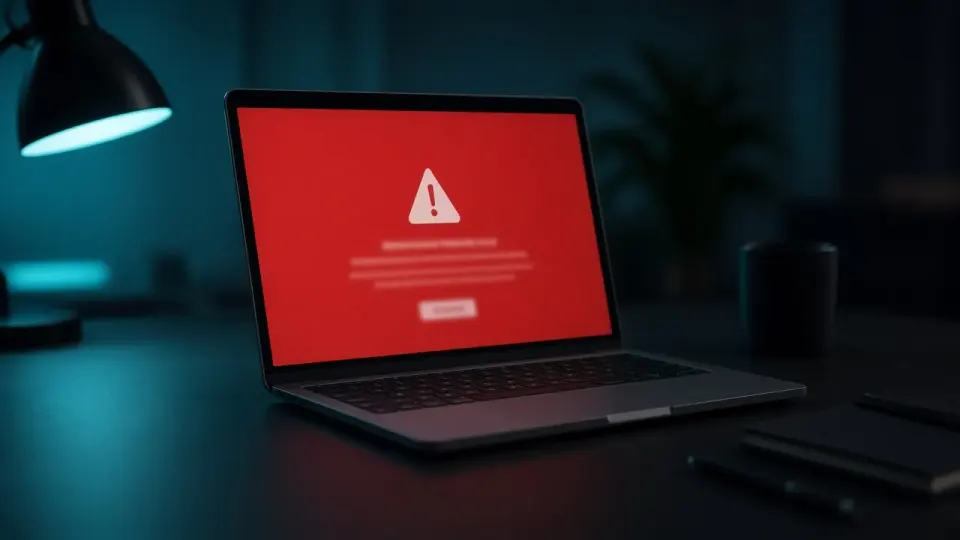
You open your site and see a red warning screen, or a customer emails you saying "Chrome says your website is dangerous." If that sounds familiar, your website has almost certainly been blacklisted by Google. When a website blacklisted by Google warning appears, traffic and trust drop overnight. This isn't random. Google only flags a site when its automated systems detect actual evidence of malware, phishing content, or behavior that puts visitors at risk. The good news: a blacklisted website can be cleared, usually within a matter of days, if the underlying problem is fixed properly and in the right order.
This guide walks through what it actually means when Google blacklists a site, the most common causes, how to confirm the problem yourself, and, most importantly, the exact sequence of steps to get your site back to a clean, trusted status.
What It Means When Google Blacklists Your Site

Google's blacklist, technically the Safe Browsing list, is a database of sites Google and other browsers flag as potentially dangerous. Once your domain lands on it, one or more of the following typically happens:
- Visitors using Chrome, Firefox, or Safari see a red interstitial page reading something like "Dangerous site" or "Deceptive site ahead."
- Your rankings collapse, and search results may display a warning label directly under your listing.
- Google Search Console sends an email alert under "Security Issues" for your property.
- Independent security vendors like Norton Safe Web or McAfee SiteAdvisor may block access as well, separately from Google.
It's worth understanding that Google doesn't flag sites arbitrarily. Safe Browsing continuously scans billions of pages looking for concrete, recognizable patterns, malicious scripts, phishing forms, or redirects to dangerous destinations. If your site is flagged, the system found real evidence, not a false alarm.
The Most Common Reasons Google Blacklists a Site

Based on real-world WordPress cleanup cases, blacklisting almost always traces back to one of four root causes.
Malware Injected Into Site Files
This is the most frequent cause. An attacker has inserted malicious code, usually a PHP script, into theme files, a plugin, or WordPress core. That code can silently push additional malware to visitors' devices, run cryptocurrency mining scripts in the background, or trigger hidden pop-ups advertising scam products.
Hidden Phishing Pages Inside Your Site
Attackers frequently create hidden subdirectories (for example, yoursite.com/wp-content/uploads/2024/paypal-login/) that mimic login pages for banks, PayPal, or other trusted services. Site owners are often completely unaware these pages exist, since they're invisible through normal site navigation.
Suspicious Redirects to Dangerous Destinations
If your site automatically redirects visitors to fake prize pages, fake software update prompts, or adult content sites, Google treats this as a clear compromise signal and reacts almost immediately.
An Outdated Plugin or Theme With a Known Vulnerability
Many infections aren't the result of a targeted "hack" at all, they come from automated bots scanning the internet for sites running old, unpatched versions of popular plugins. Once a bot finds a vulnerability, it injects code with zero interaction from you.
How to Confirm Your Site Is Actually Blacklisted

Before taking any action, confirm the status and scope of the problem. Here are three reliable ways to check.
Google Search Console
If your site is verified in Search Console, open the "Security Issues" section in the left sidebar. If there's a problem, Google will list the exact infection type (for example, "Hacked type: Content Injection" or "Malware distribution") and often a sample infected URL. This is the fastest, most authoritative source, since it comes directly from Google.
Google Safe Browsing Transparency Report
Without Search Console access, you can check status directly through Google's Safe Browsing Transparency Report tool, just enter the domain, and it will tell you whether it's currently flagged as unsafe.
Third-Party Security Checkers
Norton Safe Web and McAfee SiteAdvisor maintain their own independent lists. A site can be clean on Google's list while still blocked on one of these platforms, or vice versa. It's worth checking all three before declaring the problem solved.
The Steps to Remove a Site From the Blacklist

Delisting follows a specific order. Skipping steps, for example, requesting a review before the infection is actually gone, only extends the time your site stays flagged, and can trigger a stricter re-review the second time around.
Step One: Fully Identify the Infection
Before any cleanup begins, you need to pinpoint exactly where the malicious code lives, theme files, a plugin, WordPress core, or the database (in options tables, widgets, or post content). Surface-level cleanup that removes only visible symptoms almost always leaves a backdoor behind, which lets the infection return.
Step Two: Completely Remove the Malicious Code
This includes deleting or sanitizing infected files, comparing against clean, original versions of WordPress core and plugins, and scanning the database for injected code. If the attacker created unfamiliar administrator accounts, they need to be removed at this stage too.
Step Three: Close the Entry Point
Removing the visible infection isn't enough, you have to close the door the attacker used to get in. That typically means updating every plugin and theme to the latest version, rotating every password tied to the site (WordPress admin, hosting, FTP, database), and removing any plugins that are no longer maintained.
Step Four: Submit a Review Request in Google Search Console
Once you're confident the site is fully clean, the "Security Issues" section includes a "Request a Review" option. Google asks you to describe what the problem was and what steps you took to fix it. Be specific, a vague note like "we cleaned the site" has a lower chance of passing than a detailed explanation of the infection type and the remediation steps taken.
Step Five: Be Patient During the Review
Google typically responds within a few hours to three days, though in some cases it can take up to a week. During this waiting period, the site remains flagged, that's normal and doesn't mean the request was rejected.
How to Prevent Getting Blacklisted Again

Getting delisted is only half the job. Without addressing the root cause, it's extremely common for the infection to return within a few weeks, triggering a second blacklisting, and the second review typically takes even longer.
Key prevention measures include keeping WordPress core, your theme, and every plugin updated at all times, using strong, unique passwords for every account tied to the site, removing inactive plugins and themes (even deactivated code can be an entry point), installing a security plugin that monitors file changes, and keeping regular backups so you can quickly restore a clean version if something happens again.
When It's Time to Call in a Professional
If you have the technical knowledge and the time, you can handle some of these steps yourself. That said, there are clear situations where bringing in a specialist is the better call: when you can't locate the source of the infection after several hours of searching, when the site is a WooCommerce store with active orders and every hour of downtime means real lost revenue, when this is already the second or third time the same infection has appeared, or when you simply don't have time to risk a mistake that extends the whole process.
Professional cleanup isn't just faster, it also gives you confidence that the infection is genuinely and completely gone, including hidden backdoor files that an amateur check commonly misses. We cover that hunt in how to find a WordPress backdoor.
What to Do Next

A website blacklisted by Google is stressful, but entirely fixable. Clearing a website blacklisted by Google starts with removing the malware completely. The process is clear: confirm the status, find and remove the complete infection, close the entry point, and only then request a review from Google. Skipping any of these steps almost always extends the time your site stays unavailable to customers.
If you also see other signs a website is hacked, run a free check on hakovansajt.com or call 065 402 5000: the first step is always a free analysis showing exactly what hit your site before you decide on next steps.