
I restored my site from a backup after a hack: is that enough?
This guide covers restore backup after hack from confirmation through cleanup and prevention.
The site has been hacked. Visitors are redirected to other sites, Google shows a warning, or you've found an unknown administrator. Luckily, you have a backup. Your host makes one every day, or a plugin you installed does. You click "Restore", wait a few minutes, and the site looks the way it did a week ago. Problem solved.
A few days later it all happens again. The same redirect, the same warnings, maybe worse than the first time. Meanwhile, the content created after the backup date has been lost too.
This is one of the most common situations owners come to us with, and it usually comes with the same question: "How is this possible, I restored the site to how it was before the attack?" A backup is extremely important, and without one many sites would be lost. But restoring a backup and cleaning a hacked site aren't the same thing. In this article we explain why the infection often comes back after a restore, when a backup really helps, how to choose the right one, and how to restore it so the site stays clean afterwards.
Why restoring a backup often doesn't solve the problem

When dealing with restore backup after hack, order matters more than speed.
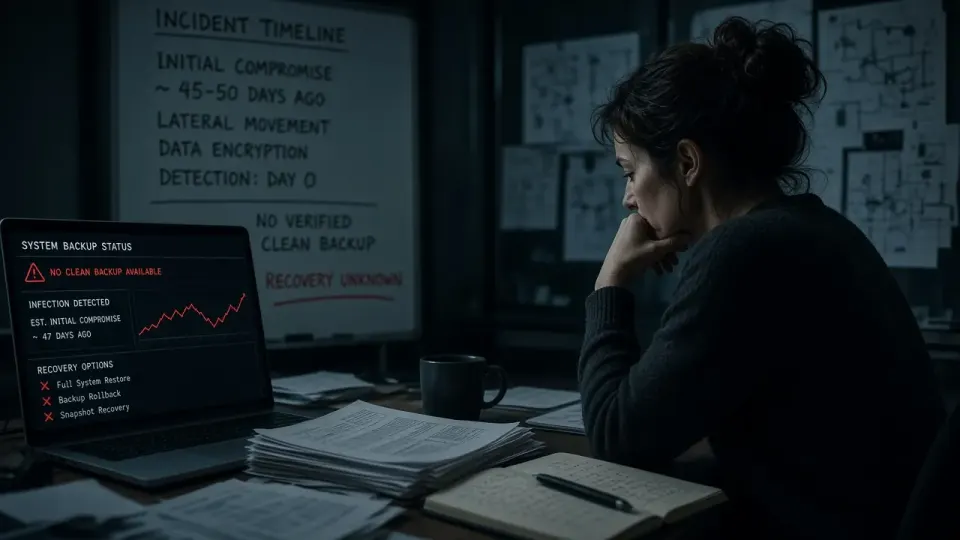
You don't know when the infection started
When you notice a site has been hacked, that's usually not the day it was hacked. Attackers often get into a site, plant a backdoor and then wait. The infection can exist for weeks or months before it becomes visible: before spam appears in Google, before a redirect or a warning.
The reason is simple: it isn't in the attacker's interest for you to notice. A quiet backdoor waiting for months is worth more to them than a site that immediately starts sending spam and gets cleaned within a day. If you restore a backup from three days ago and the attacker got in three weeks ago, the backup already contains the backdoor. You've returned the site to a state that looks clean, but the attacker still has a way in and just needs to use it again.
You restore the same hole
Even if the backup really is from before the break-in, it contains the same versions of plugins, theme and WordPress that existed then. If the attacker got in through a vulnerable plugin, restoring the backup restores that vulnerable plugin too. The automated tool that found it the first time will find it again, often within days.
Stolen passwords still work
If the attacker stole the password for an administrator, FTP or the hosting account, the backup changes nothing. The passwords in the database are the same as before, and the backup doesn't touch hosting and FTP passwords at all. The attacker simply logs in again.
The backup doesn't cover everything
A typical backup contains the site's files and database. It doesn't, however, contain everything an attacker can change:
- scheduled tasks (cron) at the server level, which can download and plant malicious code again,
- other sites and folders in the same hosting account, from which the infection can spread again,
- hosting account settings, extra FTP accounts and SSH keys,
- DNS records and subdomains,
- external services such as Google Tag Manager or email accounts.
Restoring "over" the existing files
Many restore tools, including some hosting panels, simply overwrite the existing files with those from the backup. Files the attacker added that aren't in the backup stay on the server. The site then looks restored, but the backdoor file in uploads still exists. This is one of the most common reasons the infection returns immediately after a restore.
Google and visitors don't see the difference straight away
Even when the restore works and the site really is clean, spam pages the attacker created can stay in Google for weeks, and the browser warning stays until Google reviews the site again. The owner often thinks the restore failed, repeats it with an even older backup and loses content unnecessarily. How to handle that part is described in Site cleaned, but Google still shows spam pages.
When a backup really helps

None of this means a backup is worthless. On the contrary, a backup is one of the most useful tools in a cleanup; it just has to be used the right way.
- As a source of clean content. Posts, pages, images and settings from an older backup can be used to rebuild a clean site without relying on infected files.
- For comparison. Comparing the infected site with a backup makes it easy to see which files were modified or added, and since when.
- As a safety net. Before any cleanup, a backup of the current state lets you go back if something goes wrong.
- As a quick fix, but as part of the full procedure. Restoring a verified backup, together with updating everything, changing all credentials and closing the way in, can be the fastest route to a clean site.
How to choose the right backup
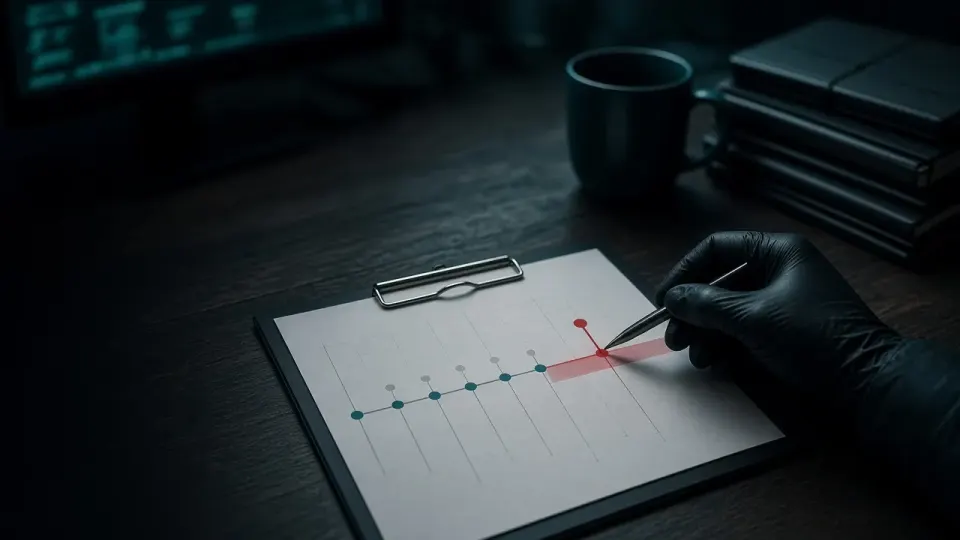
Work out when the infection probably started
A few clues help estimate the start:
- File modification dates. The oldest modification date of a suspicious file is often closest to the moment of the break-in. Attackers sometimes change dates to make a file look old, so this isn't completely reliable, but it's a good start.
- The registration date of unknown administrators, visible in the user list or the database.
- The first spam or warning in Search Console, and a sudden jump in the number of indexed pages.
- Hosting logs, if they exist for that period: suspicious logins, requests to unusual files.
- Security plugin warnings you may have ignored earlier.
Choose a backup older than that moment, with a margin
The rule is simple: the backup should be older than the earliest trace of the infection, with some margin. The problem is that an older backup also means more lost content: new posts, page changes and, for online shops, orders and customers. That's why in practice the two are often combined: files and the system are restored from an older, verified backup, and newer content is carefully carried over from the newer database, as data rather than code.
Check the backup before restoring
Before restoring a backup to the live site, check it. Ideally it's restored to a staging location and scanned, or at least the files in the archive are reviewed for known signs of infection: PHP files in uploads, obfuscated code, unknown files in core. What a backdoor looks like is described in How to find a WordPress backdoor.
How to restore a site from a backup properly
1. Save the current, infected state
Make a copy of the current files and database before restoring. You need it to analyse how the attacker got in, and to be able to recover content created after the backup.
2. Delete, then restore
Don't restore the backup over the existing files. First remove all the site's files from the server, then restore the files from the backup into an empty folder. That way no file the attacker added stays on the server. If your host has a restore button, ask support whether it deletes files that aren't in the backup.
3. Restore the database separately and check it
Restore the database from the same backup, then review users and options. Check the administrator list, options with unknown or obfuscated values, and page and post content for <script.
4. Update everything immediately
Before putting the site back in front of visitors, update WordPress, all themes and plugins to the latest versions. Remove plugins and themes you don't use, and replace any pirated versions with the originals. We write about the risks of pirated software in Nulled WordPress themes and plugins.
5. Change all credentials
Change the passwords for hosting, FTP/SFTP, the database and all administrators, and set new security keys (salts) in wp-config.php. Check whether there are FTP accounts or SSH keys in the hosting account you don't recognise, and remove them.
6. Check the server and the rest of the account
Review the scheduled tasks (cron) in the hosting control panel, the other sites and folders in the same account, and the domain's DNS records. Old and abandoned installations are best removed.
7. Bring back content created after the backup
If new posts were published, orders received or users registered after the backup date, carry them over from the saved copy of the database. This is a sensitive step: only data is transferred (posts, orders, customers), not options, plugin settings or anything else that could contain code. For WooCommerce shops this is especially important, because orders mustn't be lost. What cleaning a shop looks like in practice is described in Hacked WooCommerce store: how we cleaned it up.
8. Check and monitor
After the restore, run a scan with the security plugin, ask your host to scan the account and run a free website check from the outside. Then repeat the check in a few days and in a week. If the infection returns, it means the way in wasn't closed, as explained in Infection returns after cleanup.
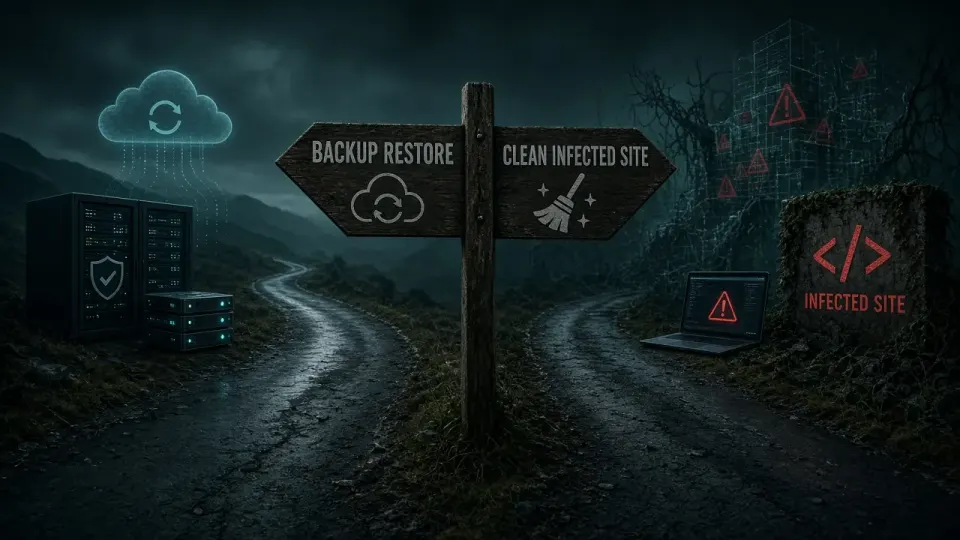
Backup or cleaning the existing site: when to choose which

Use this checklist whenever restore backup after hack shows up again after a partial cleanup.
There's no single answer for every case. Here's how we usually decide:
| Situation | Better choice |
|---|---|
| A verified backup older than the break-in exists, with little new content since | Restore the backup with the full procedure above |
| A backup exists, but you don't know when the break-in started | Clean the existing site, use the backup for comparison |
| An online shop with many orders after the backup date | Clean the existing site, or combine with careful data transfer |
| All available backups are already infected | Clean the existing site |
| The site is badly damaged and there's little content | A new, clean installation and manual content transfer |
In each of these cases the same steps apply afterwards: update everything, change all credentials, close the way in and monitor. The only difference is where the clean files come from.
What if you don't have a single clean backup
Owners often underestimate restore backup after hack until Search Console or clients raise the alarm.
This happens more often than you'd think: backups are kept for only seven days while the infection has lasted a month, or backups weren't being made at all. The site can still be cleaned, just by a different route.
- Core, themes and plugins are downloaded fresh from official sources, so no backup is needed for them.
- The
uploadsfolder is reviewed, and every file that isn't an image or document is removed, especially PHP files. - The database is reviewed and cleaned in place: users, options, content.
- Custom code (a child theme, your own plugins) is reviewed manually, file by file.
This takes longer than restoring a backup, but it gives the same result: a clean site. Afterwards is the right moment to set up a backup that will actually help next time. What the whole procedure looks like and when it makes sense to do it yourself is covered in DIY malware removal vs professional.
Common mistakes when restoring a backup
- Restoring the newest backup without checking when the infection started.
- Restoring over the existing files, so files the attacker added stay on the server.
- Restoring without updating, so the vulnerable plugin stays on the site.
- Restoring without changing passwords, so the attacker gets in with the same credentials.
- Restoring only the files or only the database, so the infected part remains.
- Deleting the infected state without a copy, so it's impossible to establish how the attacker got in.
- Forgetting orders and content created after the backup date.
How to make backups that really help
The backup you have when you get hacked is only as good as its setup was before that. A few rules:
- Keep backups off the server. A backup in the same hosting account can be infected or deleted along with the site. Use external storage (cloud, a separate server).
- Keep more versions, for longer. Because an infection can exist for weeks before you notice it, seven days of backups often isn't enough. We recommend at least 30 days of history, and several months for important sites, for example through daily, weekly and monthly copies.
- Back up both files and the database. A database-only backup doesn't restore files, and a files-only backup doesn't restore content.
- Don't keep backups in the site's public folder. A site archive or database export in a public folder can be downloaded by anyone. It's a common finding of security scanners, which we cover in Wordfence or your host reported malware.
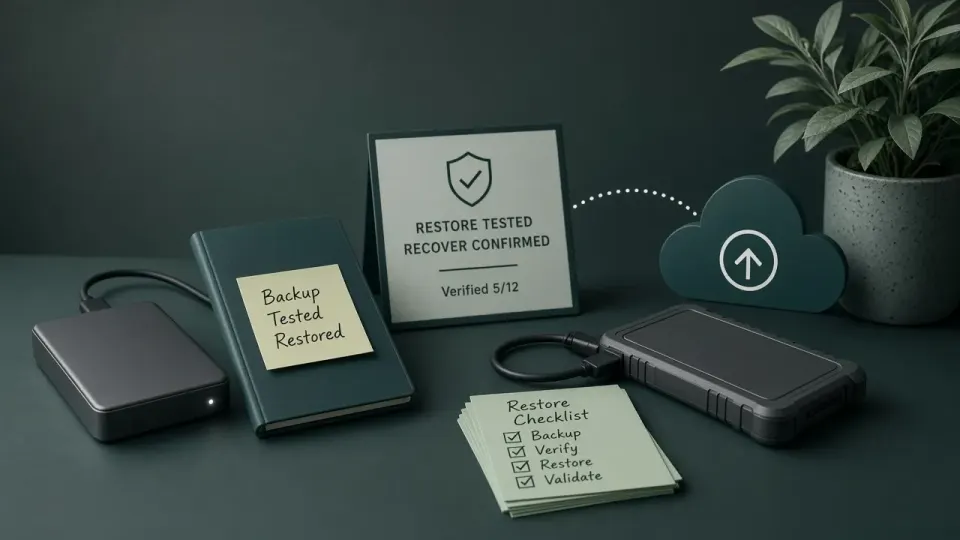
- Test restoring occasionally. A backup you've never tried to restore may not work. A trial restore to a test location every few months reveals problems while they're not yet urgent.
- The 3-2-1 rule is a good starting point: three copies of your data, on two different media, one of them off-site.
- Protect access to your backups. The external storage account should have a strong password and two-factor authentication. An attacker who reaches your backups can delete them or extract data from them.
Checklist after restoring a backup
- ☐ The chosen backup is older than the earliest trace of the infection.
- ☐ The backup was checked before restoring.
- ☐ Files were restored into an empty folder, not over the existing ones.
- ☐ The database was restored and reviewed (administrators, options, scripts).
- ☐ WordPress, themes and plugins are updated, and inactive and pirated ones removed.
- ☐ All passwords and security keys were changed, and unknown FTP accounts and SSH keys removed.
- ☐ Cron jobs, other sites in the account and DNS records were checked.
- ☐ Content and orders created after the backup were brought back as data.
- ☐ The plugin scan, the host's scan and the external check are clean.
- ☐ A repeat check is scheduled in a few days and in a week.
Next step
If you restored your site from a backup and aren't sure it's clean, or the problem has already come back, run a free website check. If you'd like someone to take over the whole procedure, from choosing and checking the backup through cleanup and closing the way in to recovering lost orders, get in touch or call +381 65 402 5000. Cleanup starts at €100, and our maintenance plan with regular backups and monitoring at €30 a month.