Signs a site is hacked: 18 signals to check
In short: signs a site is hacked today rarely look like a black page with a message. Look for a pattern of small signals in the browser, Google search, WordPress admin and hosting, then spend fifteen minutes checking without changing anything.
Most people imagine a compromised WordPress install as a black page with a skull. That still happens, but it is rare. An attacker who knocks you offline loses the most valuable thing: access. The one who leaves you alone and quietly uses the server for spam, pharmacy pages or mobile redirects can earn money for months.
That is why compromise is more often spotted in boring details than in a dramatic message: a hosting bill that jumped, mail that never reaches a client, traffic that slowly drops, a page that takes one extra second. Each signal on its own can have a harmless explanation. The problem is that owners look at them one by one and miss the pattern.
This article groups signals by where you notice them: in the browser, in Google search, in WordPress admin, on hosting, and through other people. At the end there is a fifteen-minute check you can do yourself, plus a list of things that are often mixed up with a breach.
Why a breach is rarely noticed immediately

The average owner opens the page a few times a week, always from the same computer, always logged in, always in a browser with cached content. That is the worst condition for spotting an infection, because modern malware is written to skip you.
Malicious code on WordPress often has conditions: show only to visitors from Google, only on phones, only once per IP, and never to a logged-in administrator. Some samples run only at night or on weekends. Others show only to Googlebot, so the site looks perfect to you while search results offer content you never wrote.
Add that the average breach does not start with a guessed password but with a plugin left unpatched for eight months, and you get an infection that can sit quietly for weeks. That is why it helps to know what to look for.
Signals you see in the browser
These are signs an ordinary visitor can notice - if you look at the site the way a visitor does, not as a logged-in administrator. Many first signs a site is hacked start right here, before any warning in search.
1. The page loads noticeably slower than before
An infected install often runs extra code on every load: it checks where the visitor came from, calls a remote server for new instructions, writes to the database. If a page that used to open in one second now takes four, and you changed nothing, that is worth checking.
Slowness alone is not proof - it can be weak hosting, huge images or a new plugin. Sudden slowness with no change on your side is a signal.
2. Redirects that happen only sometimes
This is one of the most common reasons people call us. A client says the site sent them to a betting page, you open it and everything looks fine. You assume the visitor had a virus on the phone.
Inconsistency is the proof here, not the rebuttal. Redirect malware almost always runs conditionally and remembers the visitor, so it will not fire the second time. Two independent reports should be treated seriously. We unpacked that scenario in the article on why a site redirects to another site.
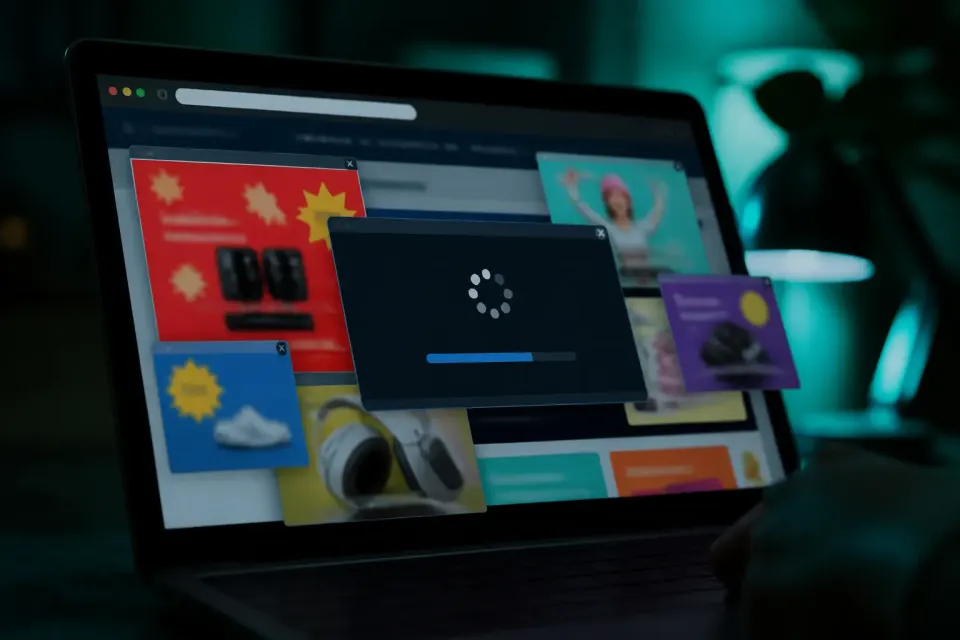
3. Ads, banners and pop-ups that are not in your theme
If ads appear and you do not run ads, someone planted them. The same applies to notification permission pop-ups, fake "your device is infected" warnings, and download buttons for a program.
4. A white screen, odd characters at the top or bottom
Badly written malware often leaves traces: a line of random letters at the top, an error with a path you do not recognize, or a blank white screen on some pages. Especially telling is a long encoded line in the page source with eval( or base64_decode(.
5. Content you do not see but others do
Open the site from a phone that is not on your Wi-Fi, in a private window, without logging in. Surprisingly often the page looks different from the outside.
Signals you see in Google search
Google sees your site more often and more thoroughly than you do. That is why a large share of infections show up first in search results. Foreign language or pages that should not exist are solid signs a site is hacked, even when the homepage looks fine to you.

6. A site description in a language you never used
Search site:yourdomain.com and look at what appears. Titles and snippets in Japanese, Chinese, Russian or English drug names are classic SEO spam. The attacker is using your domain authority to rank their pages.
7. Indexed pages that do not exist on your site
The same site: search also finds URLs like /wp-content/uploads/2019/cheap-meds/. If the indexed page count far exceeds what you actually published, generated content is on the server.
8. A Google warning that the site may be hacked
When Google detects compromised content, it adds a warning under the title. In worse cases visitors see a red interstitial. You then lose almost all traffic until the issue is fixed and a review is requested.
9. A sudden unexplained drop in organic traffic
If clicks fell 40 or 60 percent in a few days and you changed nothing, check the security issues tab in Search Console. That is the fastest confirmation or denial.
Signals inside WordPress admin
Here you look for traces left so the attacker can keep access. They are the easiest to check and the hardest to explain another way. An unknown administrator or PHP in uploads are among the clearest signs a site is hacked.
10. An administrator account you did not create
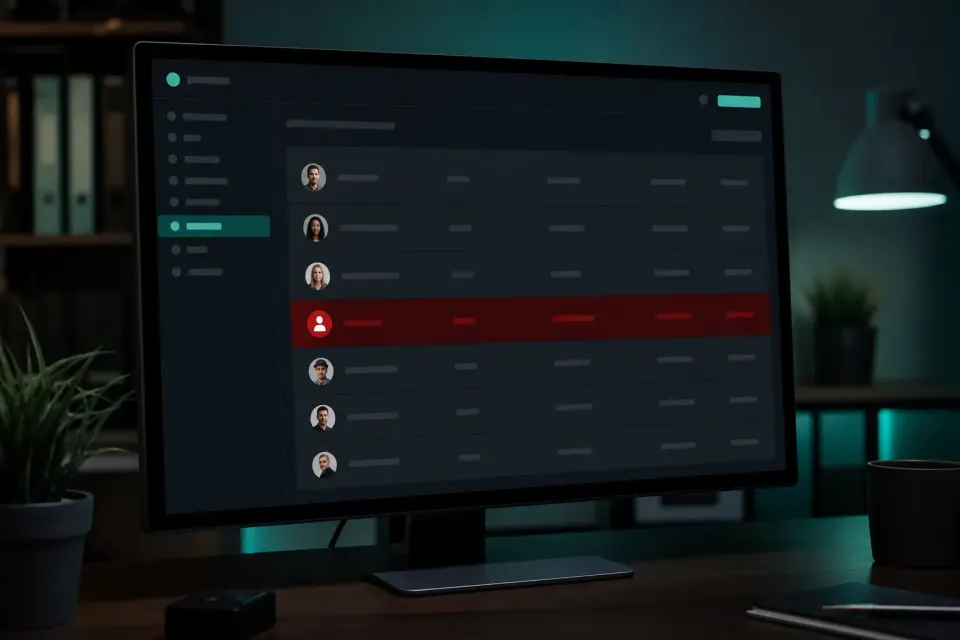
Open Users, All Users and filter by administrator. Any account you do not recognize, especially with a random name or an unknown email domain, is a serious sign. Check the registration date against when problems started.
There is a quieter variant: the attacker does not create a new account, but quietly promotes an existing subscriber. Review the whole list, not only the newest rows.
11. A plugin or theme you did not install
Especially if the plugin is inactive, with no description, no author and no project link. Attackers leave a "legitimate" plugin as a spare entrance because owners rarely delete inactive plugins.
12. Files changed when nobody was working
In File Manager or FTP, sort by modification date. If index.php, wp-config.php, .htaccess or theme files changed at 3 a.m. two weeks ago and you were not working then, that is one of the most reliable signals.
Look closely at wp-content/uploads. It should hold images and documents. Any .php file there is almost certainly a problem. How to find and remove those files is covered in how to find a WordPress backdoor.
13. You cannot log in or you get kicked out
If your password suddenly fails and you did not change it, someone else may have. If the dashboard throws you out or loads with errors, code may be blocking the real owner. Combined with other signs, it carries weight.
14. Updates that "do not stick" or files that return
If you update WordPress or a plugin and later see the old version, or a deleted file comes back after a few hours, there is code restoring itself. That is why an infection returns after cleanup.
Signals at hosting and server level
Hosting sees what WordPress does not show. The control panel is often where an infection is confirmed fastest.
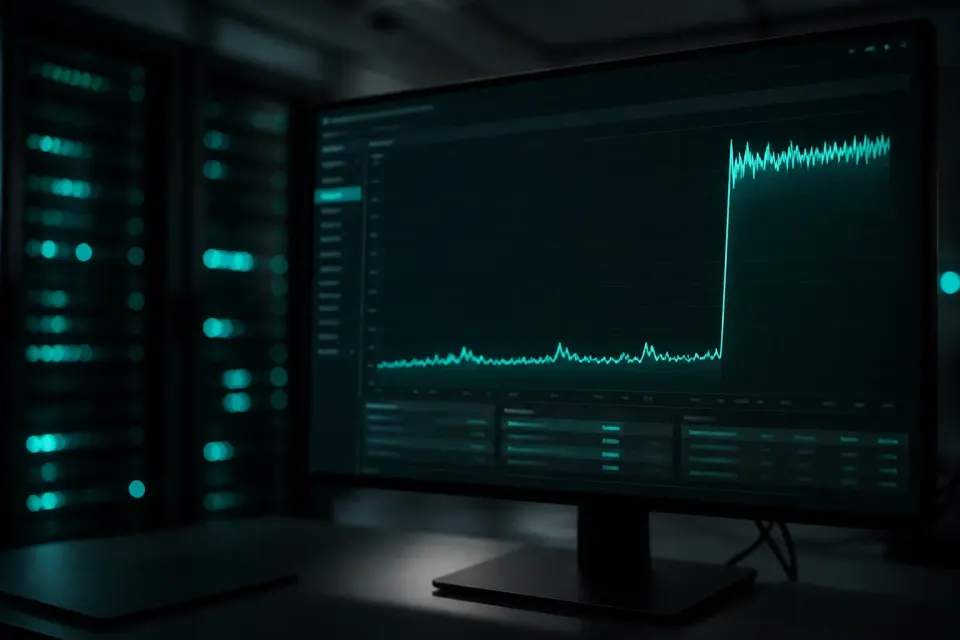
15. A sudden jump in resource use
If CPU, process count or traffic jumped without a matching visit spike, someone is using the server for something else - usually outbound mail, attacks on other sites, or mining.
16. Outbound mail you did not send
Check outbound mail stats in cPanel. Thousands of messages from an unused mailbox are unambiguous. Legitimate mail then starts landing in spam because the domain hits blacklists. We cover that chain in why a website sends spam emails.
17. A notice or suspension from the host
This is the most direct signal. If you received an abuse notice or the account is already suspended, treat it as a confirmed incident. The first-hour order is in what to do when hosting suspends the account for abuse.
18. Random file and folder names in the site root
wp-conflg.php, class-wp-cache.php in the wrong place, radio.php, PHP inside wp-includes/fonts/. Attackers name files so they look like WordPress. Anything you do not recognize in the root deserves a look.
Signals that arrive from other people
Clients and colleagues are often the first to notice, and they mention it in half a sentence. If a buyer says antivirus blocked you, if someone got mail "from you" that you did not send, if a supplier says your offer link went somewhere odd - write it down. One report can be chance. Two in the same week usually are not.
Take a client screenshot especially seriously. It is evidence from outside your device, network and login.
What is not a sign of a breach, but often gets mixed up
Panic is as expensive as neglect, so it helps to know what should not scare you.

An expired SSL certificate. The browser warning looks dramatic, but it is usually a missed renewal and takes minutes to fix.
Login attempts in the logs. Every public WordPress site sees automated login tries, often hundreds a day. That means someone is trying, not that they succeeded. A successful login is the worrying event.
"Error establishing a database connection". In most cases this is a server or limit issue, not an attack.
A white screen after updating a plugin. A classic version conflict. If it started right after you clicked Update, the cause is almost certainly harmless.
A traffic drop after a Google algorithm update. It happens seasonally and hits whole niches. Check whether the drop started on a known update day before you assume an infection.
Unwanted comments. Comment spam is annoying and normal on any site with open comments. It does not mean someone is inside.
How to check your suspicion in about fifteen minutes
If two or more signals line up, this order gives a clear answer with no risk to the site. These are checks, not edits. The goal is to know in fifteen minutes whether the signs a site is hacked are strong enough for cleanup, or whether another explanation fits better.

Step 1: Look at the site as a stranger
Open a private window, log out, turn off Wi-Fi on the phone and use mobile data. Walk the homepage, one category and one article. Note everything that is off.
Step 2: Check what Google sees
Search site:yourdomain.com and page through the results. Then open Search Console and look at Security and manual actions. If a problem is listed, diagnosis is done.
Step 3: Count administrators
Users, All Users, filter Administrator. Compare the list with people who should have full access. Do not delete anything yet, only record it.
Step 4: Check file modification dates
In File Manager sort the root by date, descending. Then do the same in wp-content/themes and wp-content/uploads. Look for PHP where it does not belong and changes in periods when you were not working.
Step 5: Check outbound mail and resources
In the hosting panel look at mail sending stats and the load graph for the last thirty days. A spike that does not match your traffic is strong evidence.
Step 6: Skim access logs
Look for repeating requests to files you do not recognize, especially POST requests to a PHP file in uploads. That is the signature of an active backdoor.
If after these six steps you have no finding, the chance of infection is low and another explanation is worth hunting. If you have at least two clear findings, treat the site as compromised: those are enough signs a site is hacked to start in order, not at random.
Suspicion confirmed: what to do next and in what order
Order matters, because the wrong first move destroys evidence or causes new damage. First make a full copy of files and the database as found, even if infected. Then change passwords in order: hosting, FTP and SSH, database, WordPress administrators, mail accounts. Enable two-factor where it exists.
Only then does cleanup start. The step order is in my site is hacked, what to do first, and a full cleanup example is the hacked WooCommerce store.
What not to do
Do not delete files at random before a copy. Do not restore an old backup without checking - if the infection is older than the backup, you restore it too. Do not install five security plugins hoping one will help. And do not tell the host "everything is fixed" before it really is.
How fast you should react
In most infections the damage is not instant, it accumulates. The first days are mostly just presence of code. After a week spam pages start getting indexed. After two to three weeks the domain hits mail blacklists. Hosting usually reacts in that window.
The difference between reacting in the first 24 hours and reacting after a month is not mainly the cleanup price, it is how long ranking and reputation take to recover. What drives the amount of work is in the cost of cleaning a hacked site.
How to reduce the chance this happens again
Most breaches we see come through outdated plugins and themes, especially abandoned ones or copies from pirate sources. Regular updates close most of the problem, and removing what you do not use closes much of the rest - every inactive plugin is still code on the server.
Strong unique passwords, two-factor for administrators, a small number of people with full access, an off-server backup you have actually restored once, and basic monitoring for file changes or downtime all help. None of that is expensive. The expensive scenario is the one with none of it.
The first step you can take right now
If you recognized two or more signals on your site, start with the free public-content check on hakovansajt.com - it takes under a minute and shows whether known malware, redirects or injected links are visible in public code.

If it is urgent, if hosting already suspended the account, or if every hour of downtime costs money, get in touch on 065 402 5000 (Viber and WhatsApp) or helpdesk@hakovansajt.com. We work every day from 8 to 21.